

ArtArch 新闻中心
AI Video TechniquesAI Image Generation CLI: Use an Agent to Build ArtArch Workflows
Use an AI image generation CLI with ArtArch to inspect a canvas, configure image nodes, run a task, and download the result through your agent.
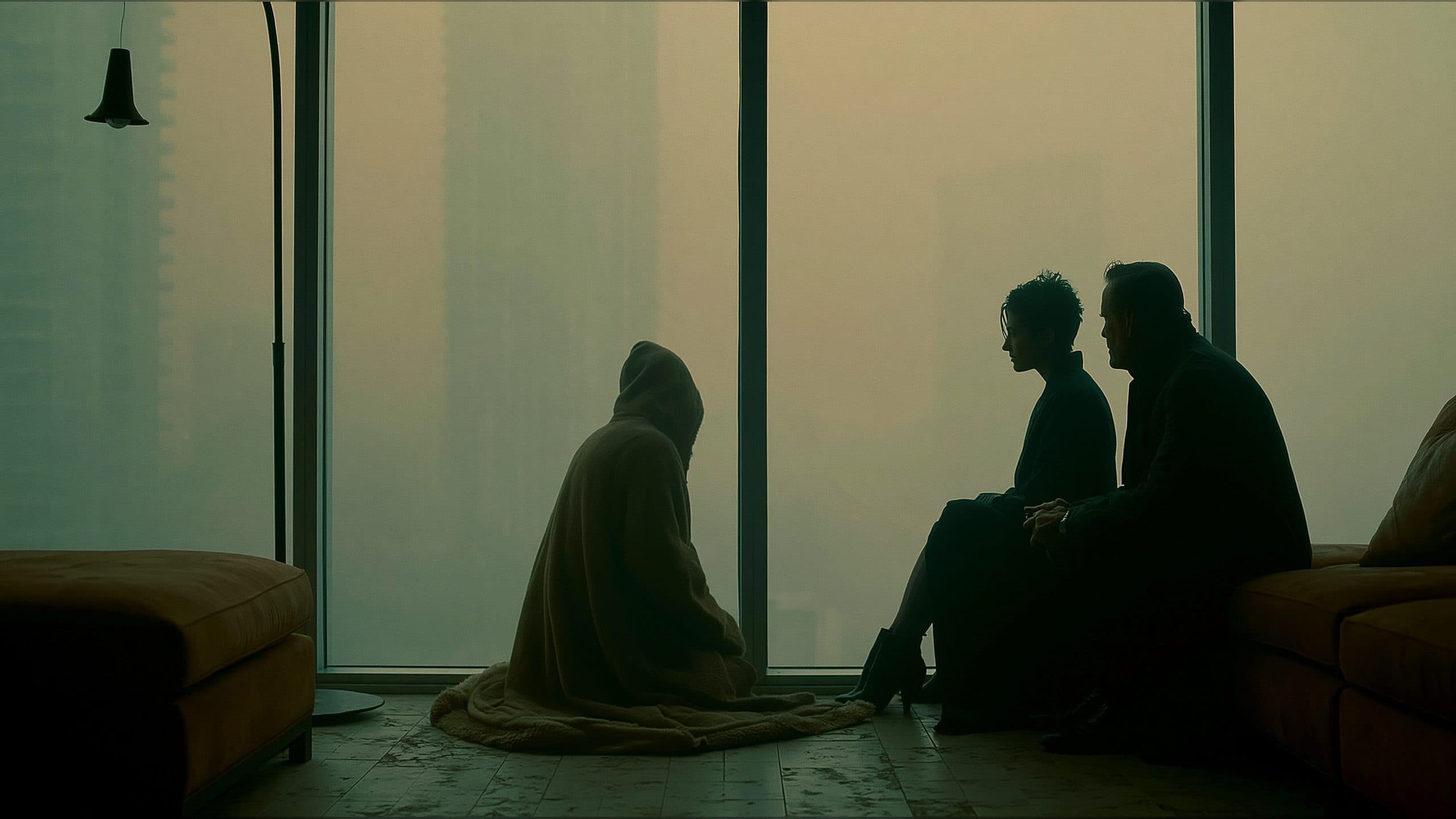
An AI image generation CLI is most useful when it keeps the creative brief connected to a reusable project. With ArtArch CLI, an agent can inspect an ArtArch Studio canvas, find the available image node types and settings, configure an image task, and leave the result available as a downloadable run artifact.
Begin with the image you want to see
Tell the agent what the image should contain before discussing command details. Name the subject, the setting, the composition, and the output shape. A request such as “create a square product image with the object centered on a clean background” gives the agent decisions it can map to a canvas.
ArtArch CLI keeps the agent close to that canvas. The agent can inspect node metadata with:
artarch meta list | jq
That metadata is the place to confirm available node types, models, and configuration fields for the current account and release. It is better input for an agent than a guessed command or a copied setting from an unrelated workflow.
Build the image task in a project
Use the project commands to find the canvas and read its current structure:
artarch project list | jq
artarch project get <canvas-id>
artarch node list
An agent can then add or update the image node using the type and fields returned by artarch meta list. The CLI supports named settings for a prompt, aspect ratio, quality, and resolution, as well as repeatable --set key=value fields for other configuration. When the task starts from a reference image, an image input can be supplied through the image field and connected to the image node.
This gives the agent a clear division of responsibility. The request describes the visual target. The canvas holds the repeatable configuration. The metadata response supplies the valid controls for the current node type.
Run once the canvas is ready
Inspect the node list and connected inputs before starting a generation run. A single node run may include its upstream dependencies, so the scope should be clear before approval. The command pattern is:
artarch node run <node-id> --wait --download
The agent can wait for the terminal result and download the available image artifact. If a wait times out, keep the existing run ID and continue waiting with artarch run wait <run-id>. A timeout is a reason to continue observing the same run, not to submit the image again.
For an agent-driven image workflow, this recovery detail matters. It separates “the command is still waiting” from “the project needs a new generation request.” Your agent can report the run state, keep the project unchanged, and fetch the artifact when it is ready.
Three image tasks that fit the CLI
继续探索
更多 AI Video Techniques 内容
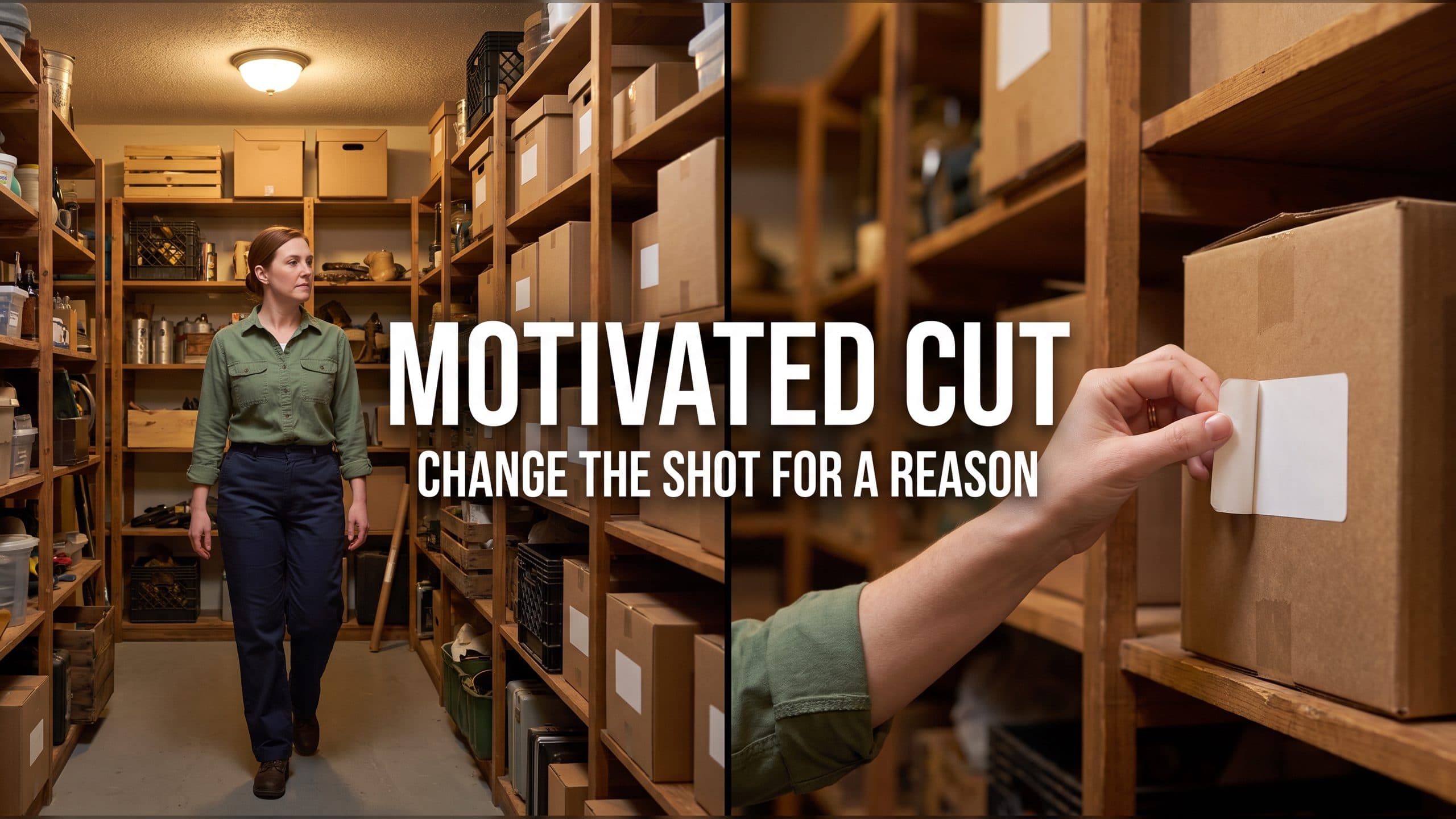
Motivated Cut AI Video Continuity: Change the Shot for a Reason
Learn how a visible action trigger, clear shot-size change, and locked screen direction create more intentional same-scene AI video edits.
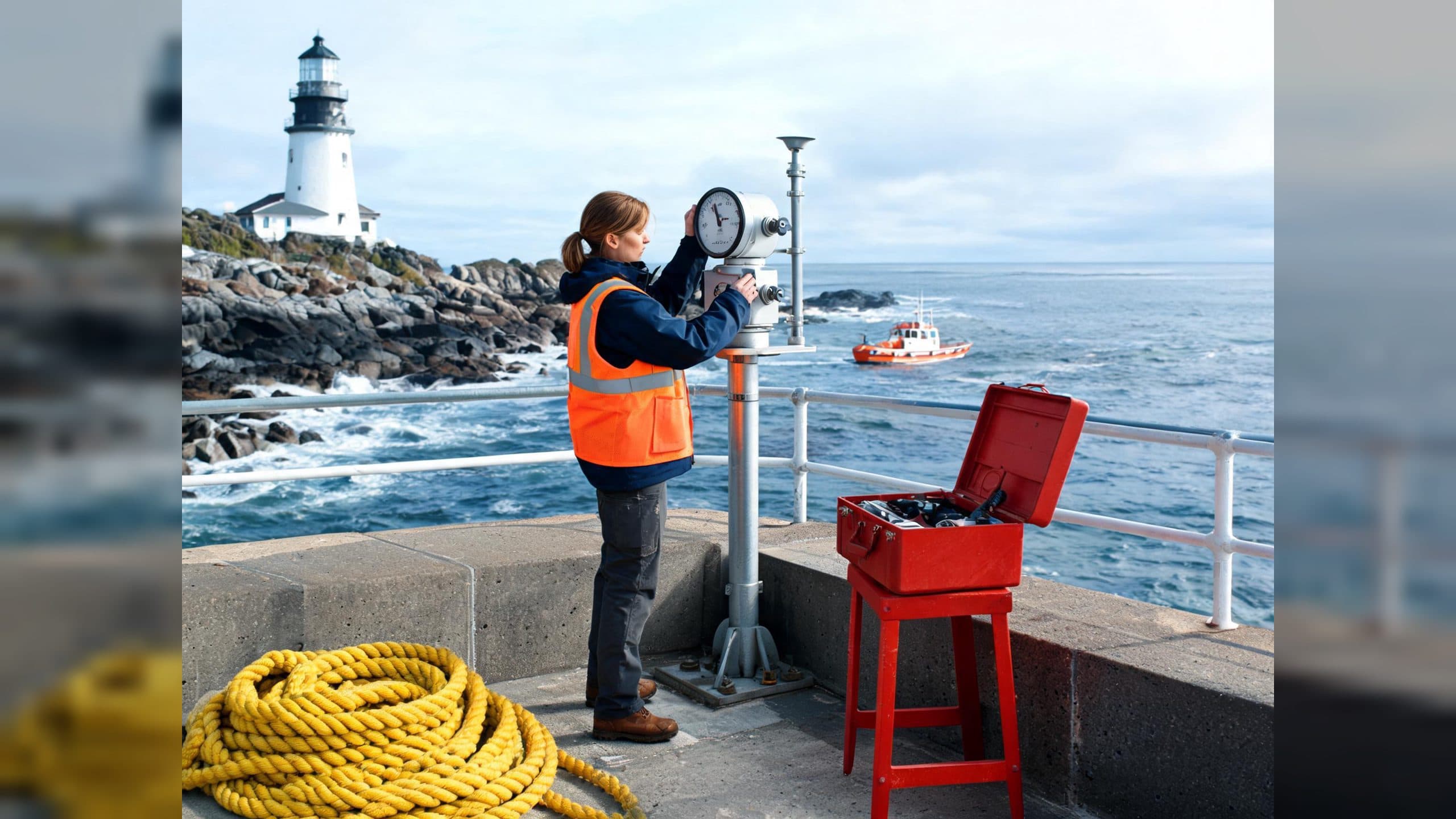
Deep Depth of Field AI Video: Keep Every Story Layer Readable
Learn how deep depth of field AI video prompts keep foreground tools, central action, and distant location cues readable in one layered shot.
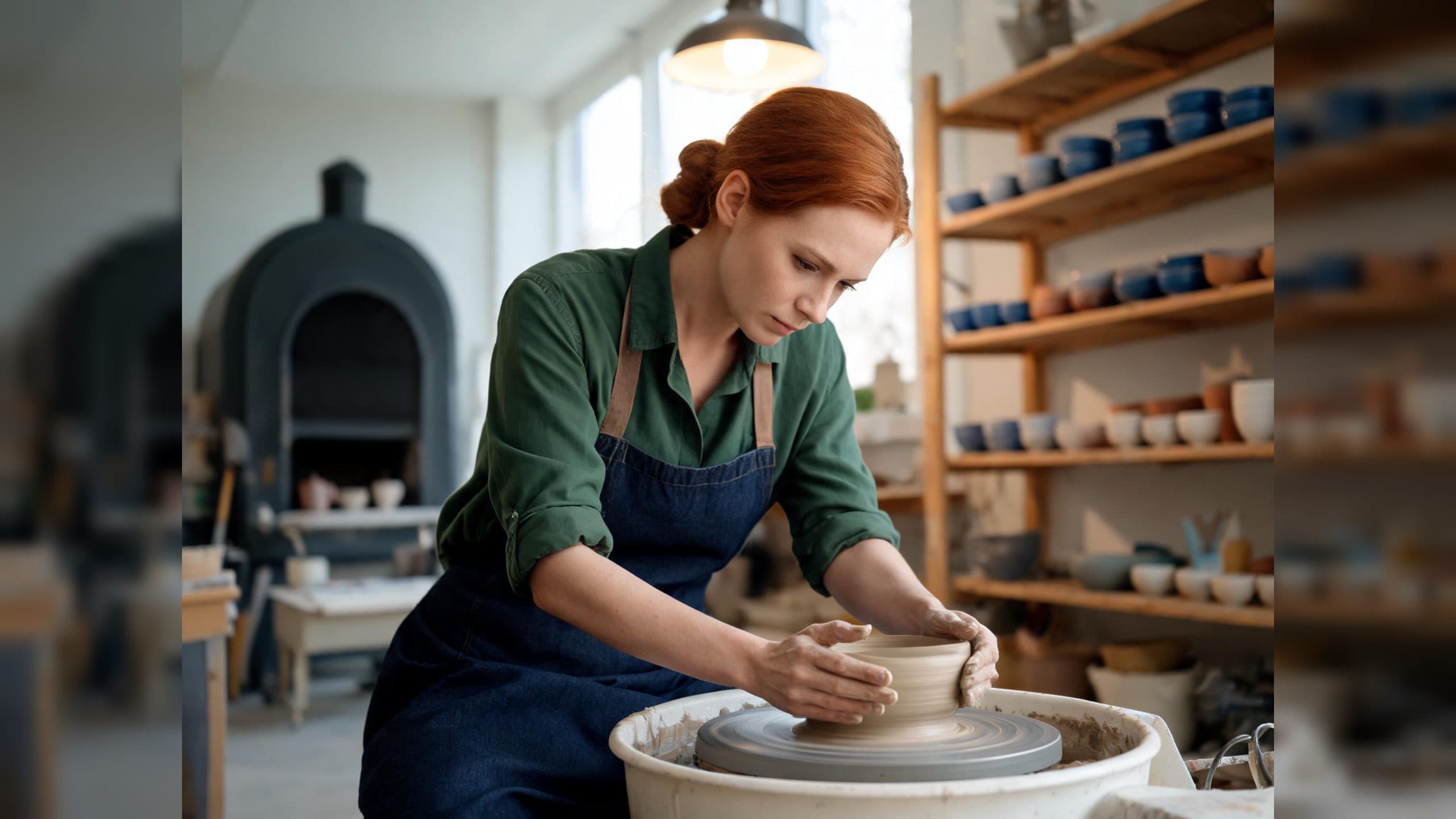
Medium Depth of Field AI Video: Balance Subject and Setting
Learn how medium depth of field AI video prompts keep hands and active objects readable while preserving recognizable environmental context.
AI Video Character Reference Framing: Match Portraits to Landscape Shots
Prepare vertical character portraits for landscape AI video by matching aspect ratio, body scale, headroom, floor space, and movement room before generation.