

ArtArch 新闻中心
AI Video TechniquesBuild an AI Video Workflow with an Agent and ArtArch CLI
Build an AI agent video workflow with ArtArch CLI: inspect a canvas, connect references, run a flow, wait on the same run, and download artifacts.
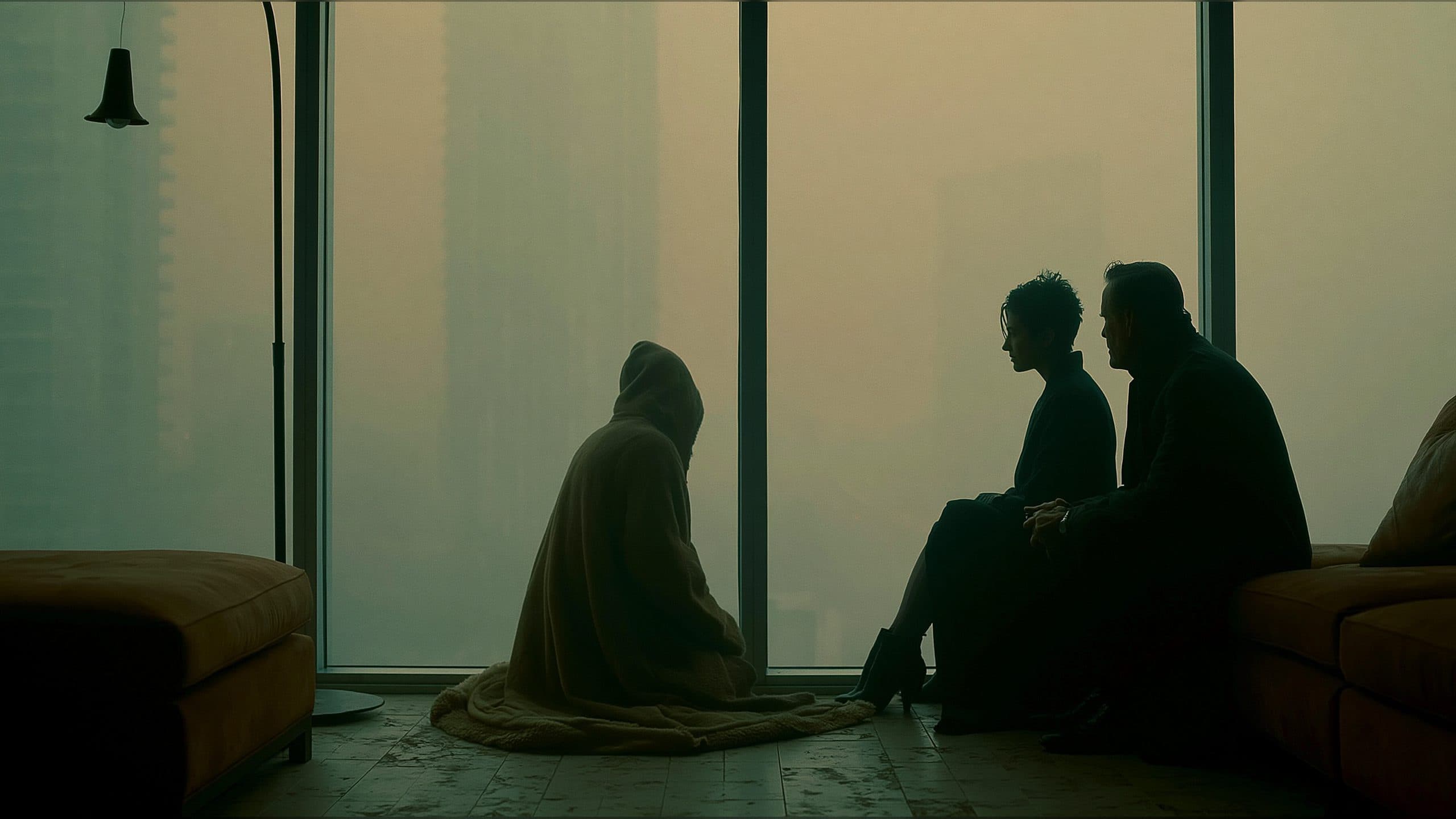
An AI agent video workflow needs more than a single prompt. It needs a project, connected inputs, visible scene decisions, and a way to wait for the final artifact. ArtArch CLI gives an agent command-line access to those parts of an ArtArch Studio canvas, so a request can grow from one reference-led shot into a repeatable video workflow.
Treat the canvas as the production brief
Start by describing the shot in user-visible terms: the subject, the reference image or video, the setting, the camera movement, the action, and the output format. A brief such as “use this subject in the same room, begin with a medium shot, and move the camera toward the product” gives the agent concrete choices to map onto a video canvas.
Before editing, inspect the current project and its node graph:
artarch project list | jq
artarch project get <canvas-id>
artarch node list
The project view shows the canvas structure, node membership, and connections. That readback helps the agent preserve an existing setup when you are refining a shot or extending a sequence.
Build the shot from connected inputs
Use artarch meta list to confirm the available video node types and their configuration fields. Configure the node for the inputs the shot actually needs, then connect the source image, video reference, or upstream result through the canvas.
ArtArch CLI checks the connection and persists the target input slot. For list inputs, the target handle selects the correct position. A completed generation with a persisted CDN result can also be reused as an input, which lets one approved shot feed the next step in a longer sequence.
The agent should keep one visible beat and one main camera move in each short video node. That makes a change easy to describe: adjust the subject action, change the camera move, or replace the reference while keeping the rest of the canvas readable.
Run the workflow and keep the run ID
When the graph is ready, review the full scope. A flow run can submit the whole canvas and may consume credits. Then start the existing workflow and wait for its terminal state:
artarch flow run --wait --wait-timeout 30m
The CLI prints the result, including artifact URLs when the run completes. You can download the artifacts immediately with --download, or fetch them later with:
artarch run download <run-id> --node <node-id> --output ./results
If a wait reaches its timeout, continue with artarch run wait <run-id>. Keep the same run ID. Resubmitting the flow would create a second generation request and make the project's state harder to reason about.
Video scenes that benefit from an agent
A creator planning a short product scene can ask the agent to connect a product image, define one camera move, run the video node, and download the take for review.
继续探索
更多 AI Video Techniques 内容
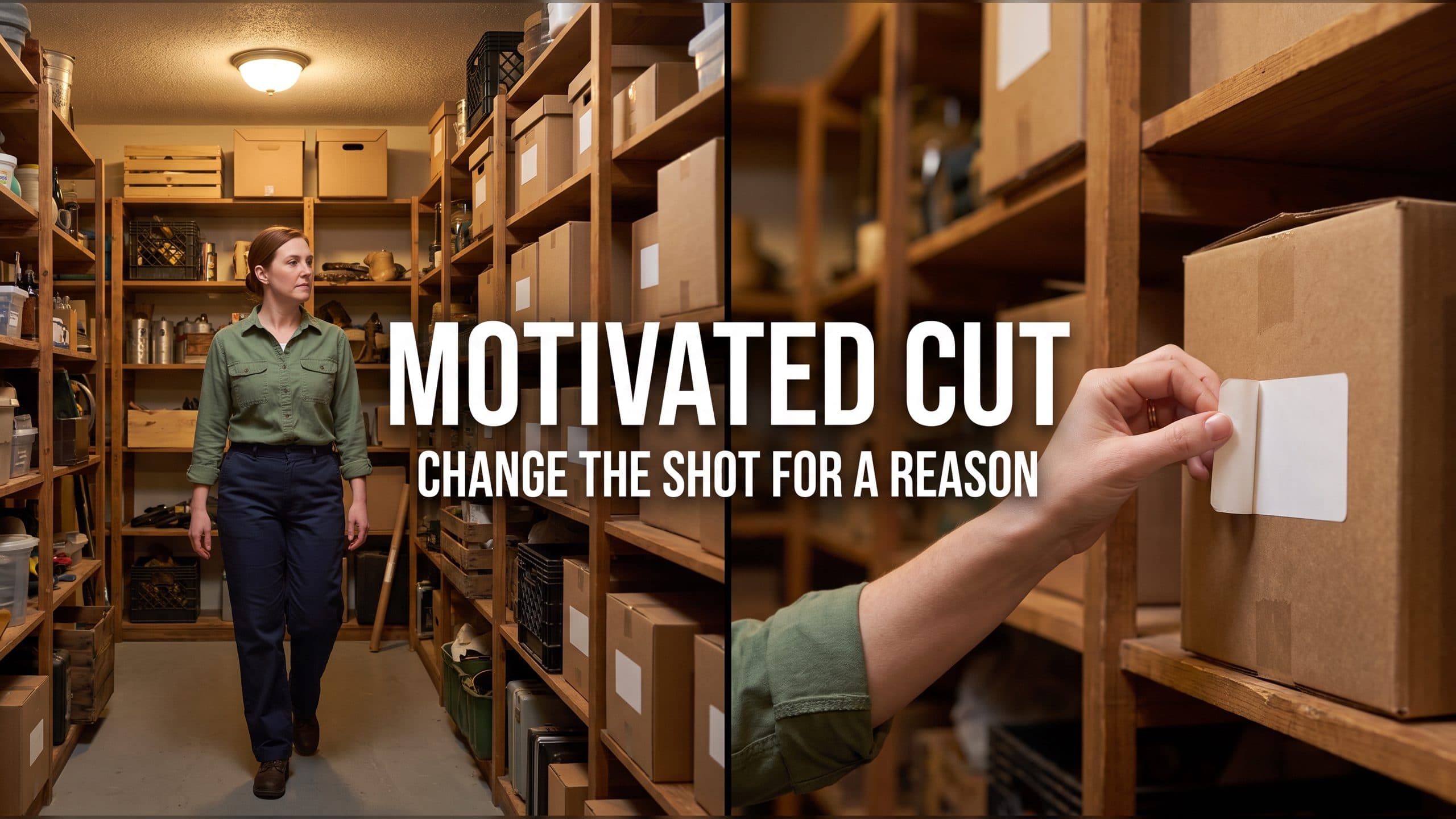
Motivated Cut AI Video Continuity: Change the Shot for a Reason
Learn how a visible action trigger, clear shot-size change, and locked screen direction create more intentional same-scene AI video edits.
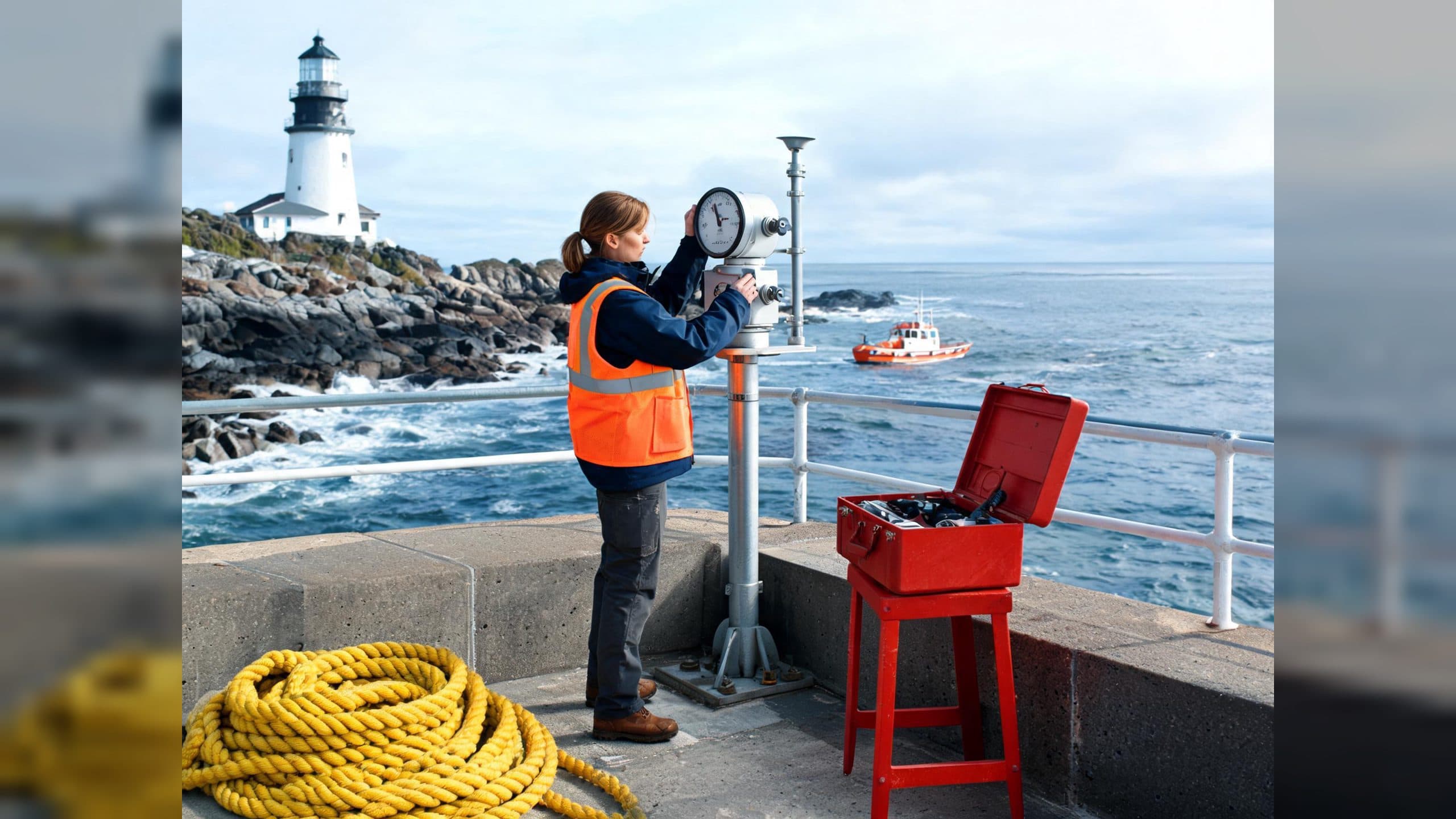
Deep Depth of Field AI Video: Keep Every Story Layer Readable
Learn how deep depth of field AI video prompts keep foreground tools, central action, and distant location cues readable in one layered shot.
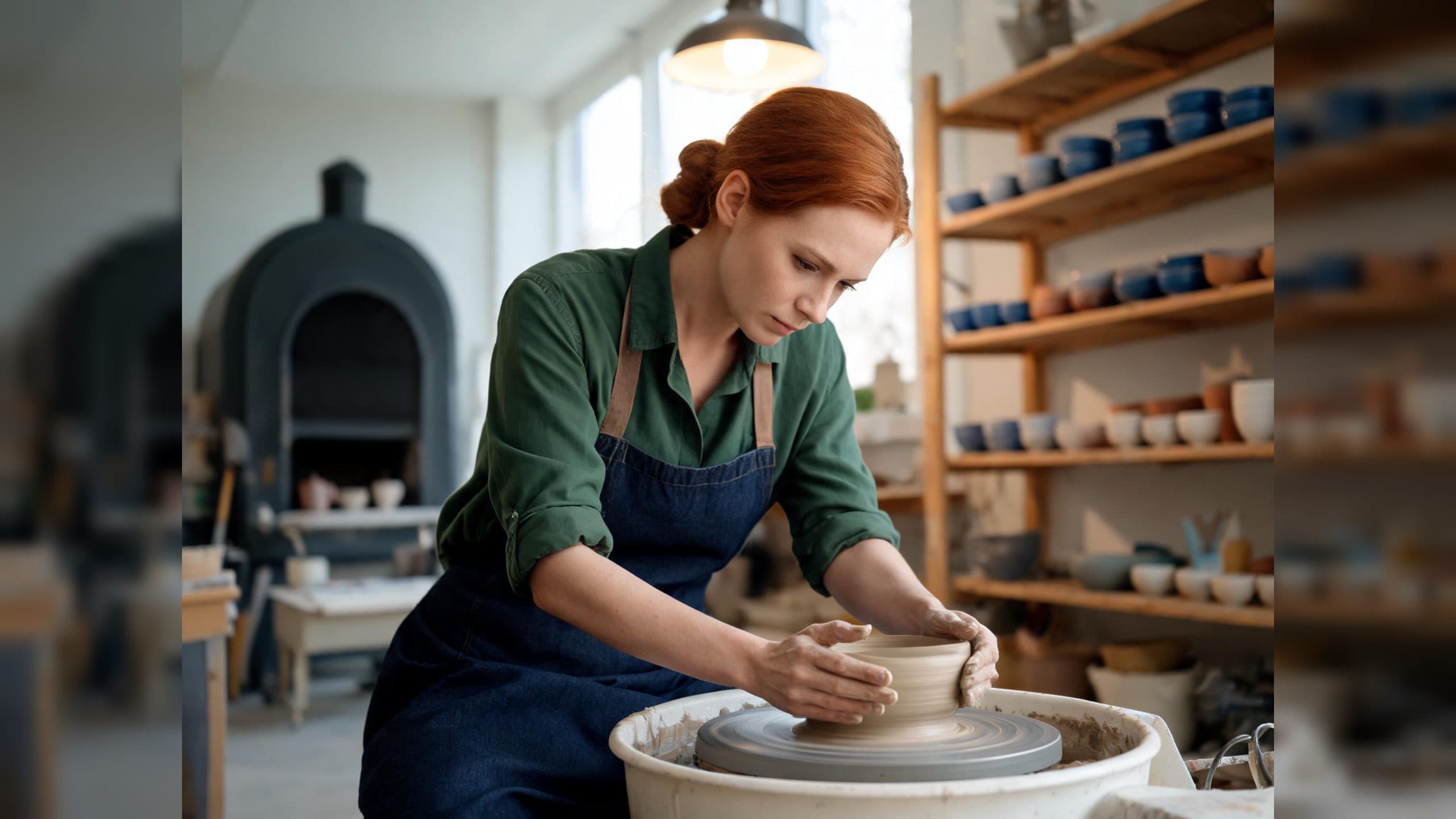
Medium Depth of Field AI Video: Balance Subject and Setting
Learn how medium depth of field AI video prompts keep hands and active objects readable while preserving recognizable environmental context.
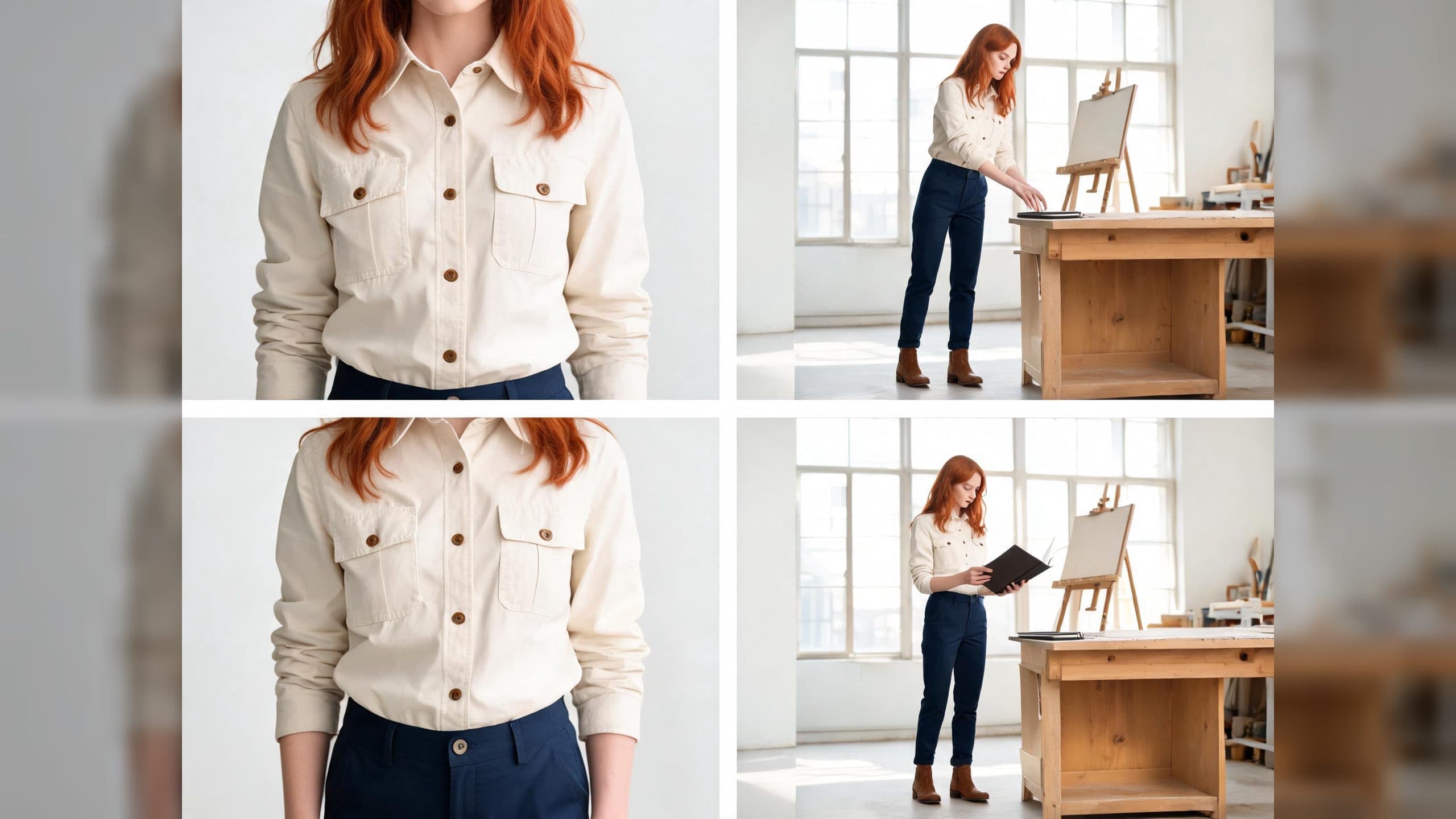
AI Video Character Reference Framing: Match Portraits to Landscape Shots
Prepare vertical character portraits for landscape AI video by matching aspect ratio, body scale, headroom, floor space, and movement room before generation.