

ArtArch 新闻中心
AI Video TechniquesInstall an AI Agent for Image and Video Creation with ArtArch CLI
Learn how to install ArtArch CLI for an AI agent, connect it to Studio projects, and create image or video workflows from a natural-language brief.
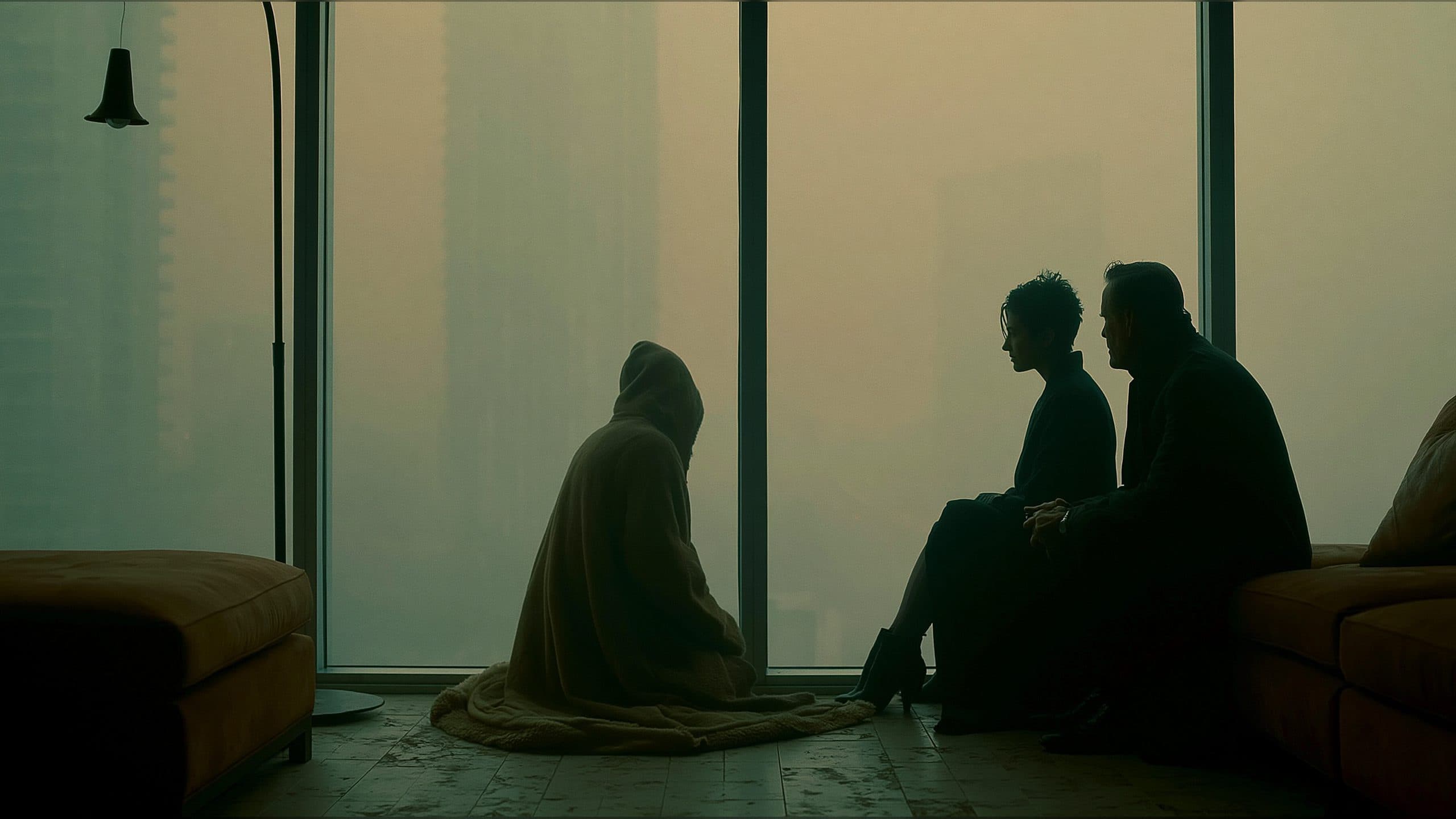
An AI agent image and video creation CLI gives your existing agent a practical way to work with creative projects. ArtArch CLI adds image, video, workflow, and website creation skills to the agent you already use, so you can describe the job in natural language and let the agent operate an ArtArch Studio canvas from the command line.
Start with the agent you already use
Open the ArtArch CLI page and copy the installation instruction shown for AI agents. The instruction installs the ArtArch CLI skill package. After the agent finishes configuring it, restart the agent so the new commands and skill instructions are available in the next session.
The current installation instruction points to the public ArtArch CLI skill package:
Install the ArtArch CLI skill from https://d3ohi5svx56rr5.cloudfront.net/artarchai/artarch-cli/0.1.1/artarch-cli-skill.zip
The page also has a manual CLI option for people who want to install the binary themselves. The agent route is useful when you want the agent to handle the setup and then continue into a creative task.
What the skill gives your agent
The CLI covers the working parts of an ArtArch Studio project. Your agent can inspect available node types, list projects, select a canvas, update nodes, connect compatible inputs, start a node or full flow, wait for a terminal result, and download finished artifacts.
That changes the handoff. You can ask for a square product image, a reference-led video, or a multi-step creative workflow while the agent keeps the project structure in view. The command line remains useful for repeatable checks and downloads, while the agent handles the conversational layer.
Make the first session predictable
Log in through the browser before the agent needs to access Studio:
artarch login web
artarch account info
Then inspect the available projects and choose the canvas for the task:
artarch project list | jq
artarch project use <canvas-id>
artarch node list
If you prefer to keep the directory free of a canvas binding, pass the project ID directly to commands that support --project. Ask the agent to inspect the project before changing it. That gives you a visible starting point and keeps the request tied to one canvas.
Give the agent a concrete creative brief
Short requests work best when they name the input, the visible result, and the format. For example, ask for a product image with a centered object and a square composition, or ask for a short image-to-video scene that keeps the supplied subject in the same setting while the camera moves closer.
The agent can turn that brief into the project configuration, but you still control the run. Generation commands can consume credits, so review the selected project, node, upstream inputs, and settings before confirming a run. After a run starts, use its run ID for waiting or downloading instead of submitting a duplicate request.
继续探索
更多 AI Video Techniques 内容
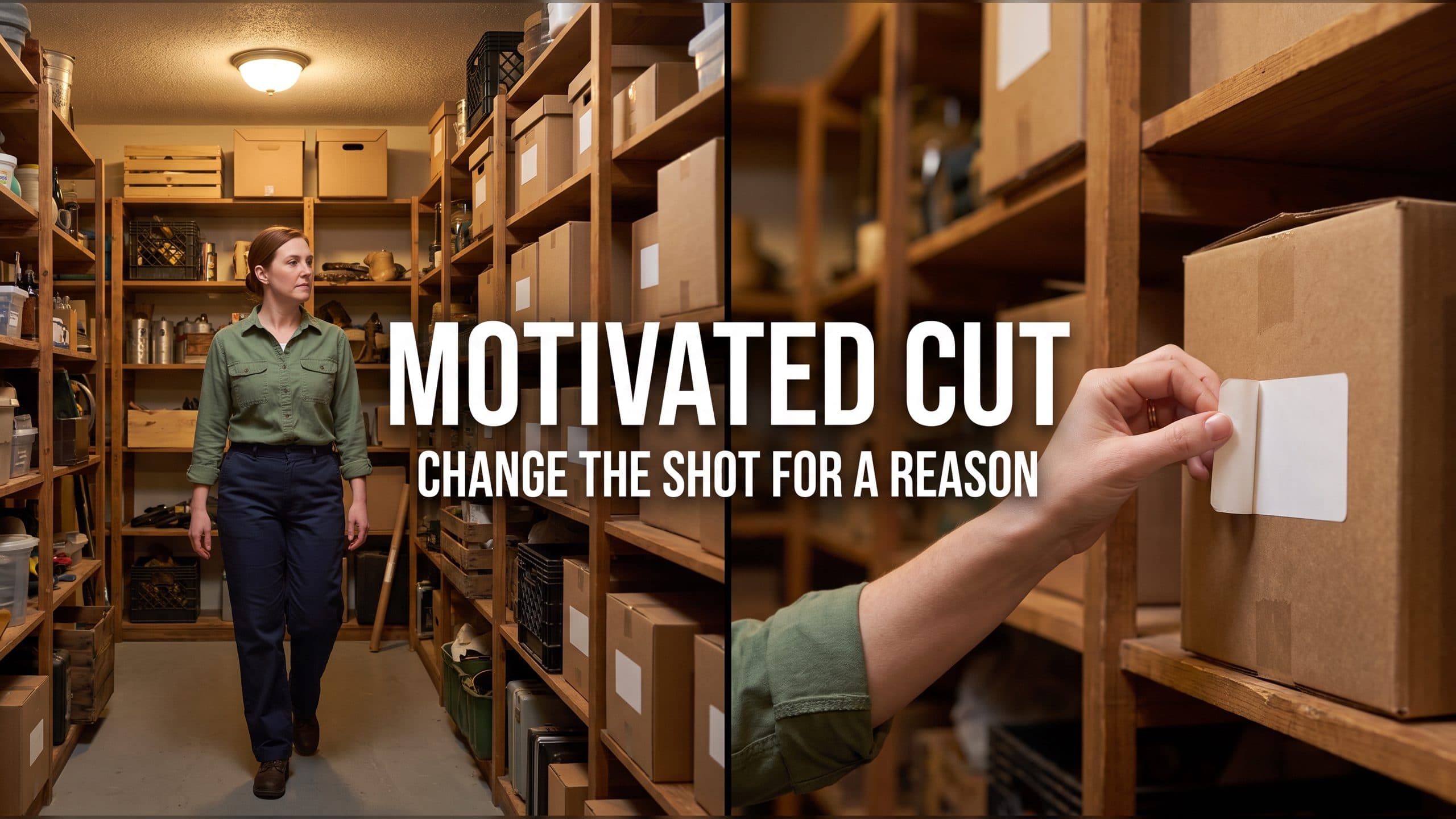
Motivated Cut AI Video Continuity: Change the Shot for a Reason
Learn how a visible action trigger, clear shot-size change, and locked screen direction create more intentional same-scene AI video edits.
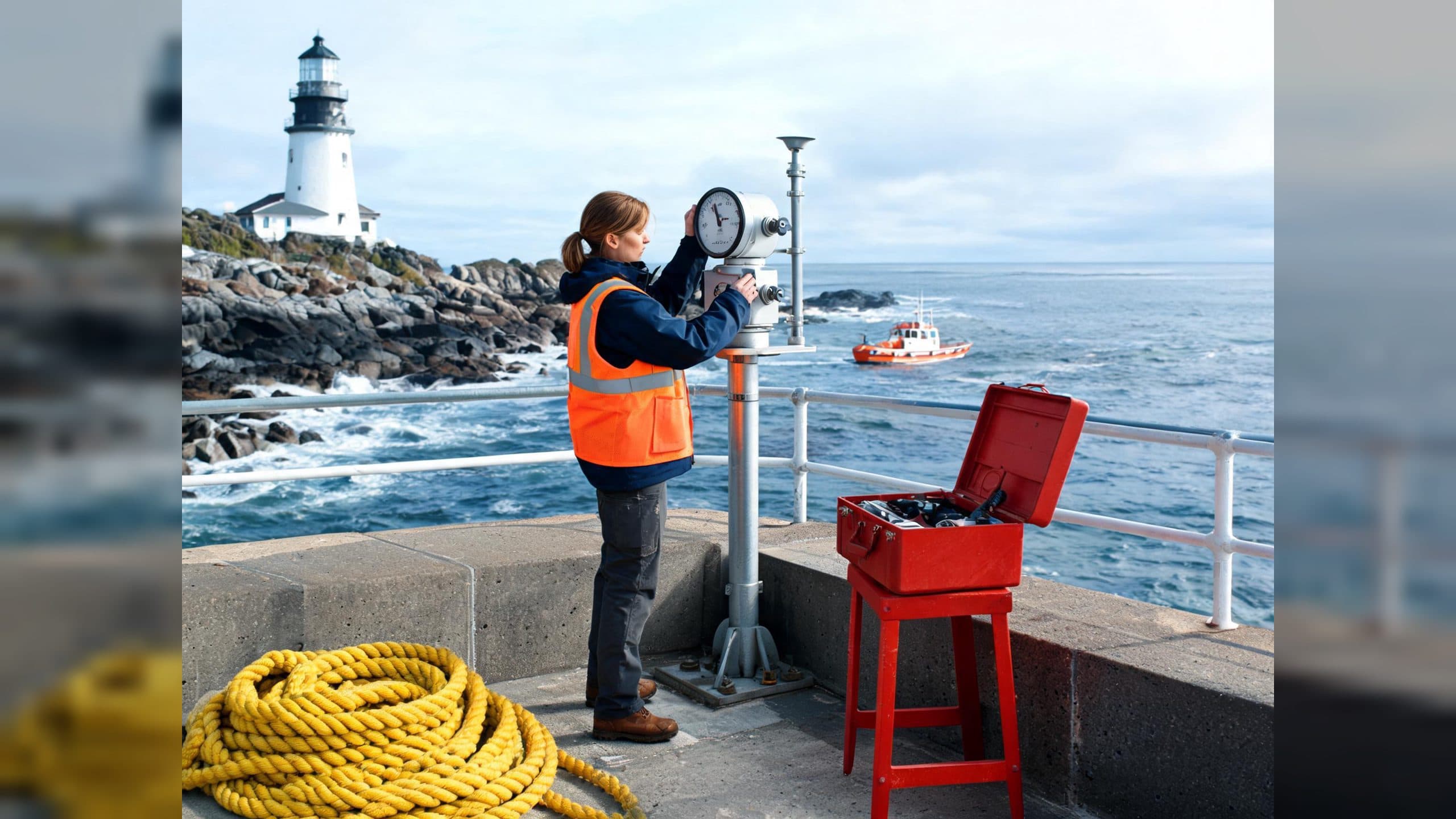
Deep Depth of Field AI Video: Keep Every Story Layer Readable
Learn how deep depth of field AI video prompts keep foreground tools, central action, and distant location cues readable in one layered shot.
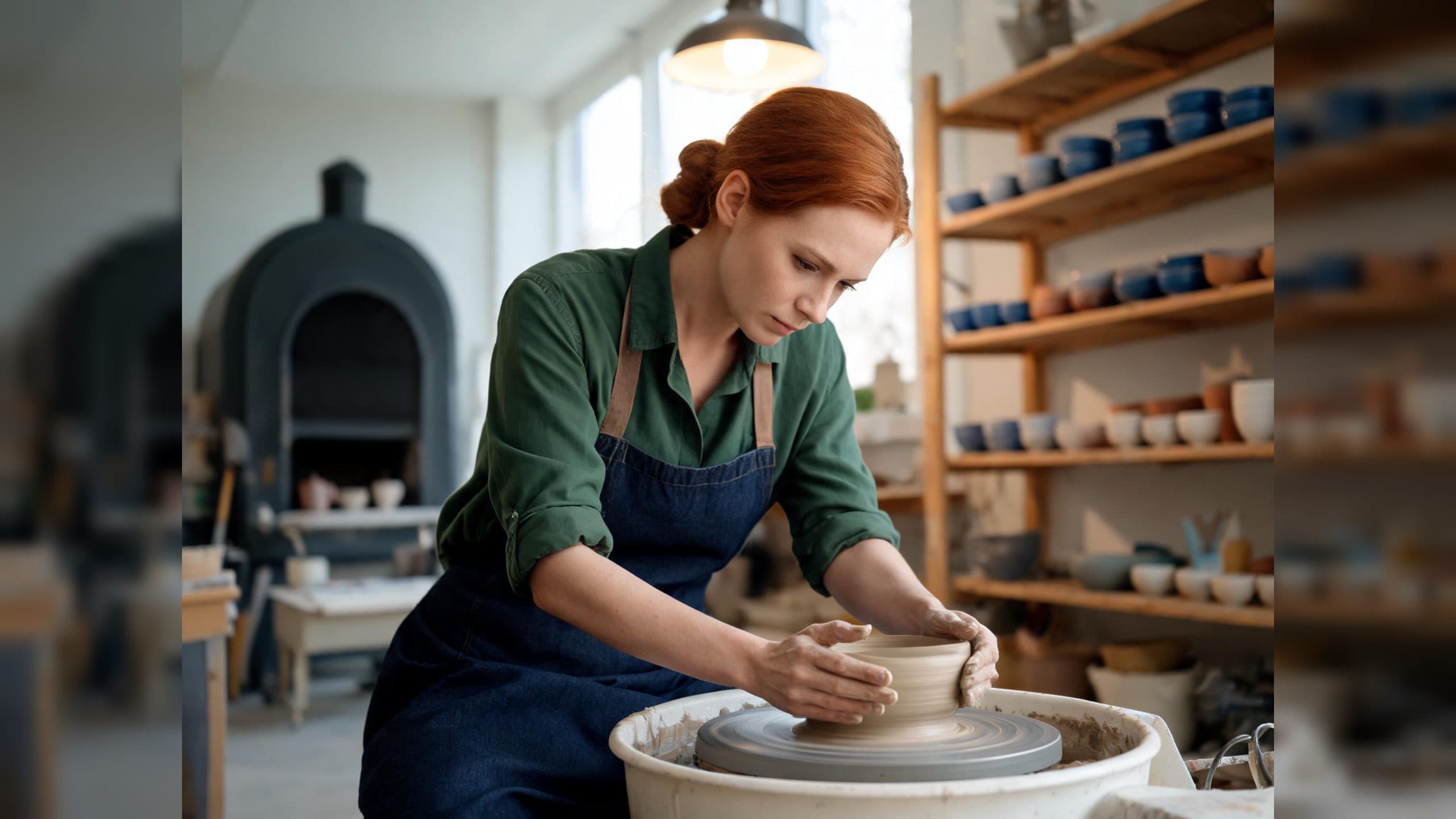
Medium Depth of Field AI Video: Balance Subject and Setting
Learn how medium depth of field AI video prompts keep hands and active objects readable while preserving recognizable environmental context.
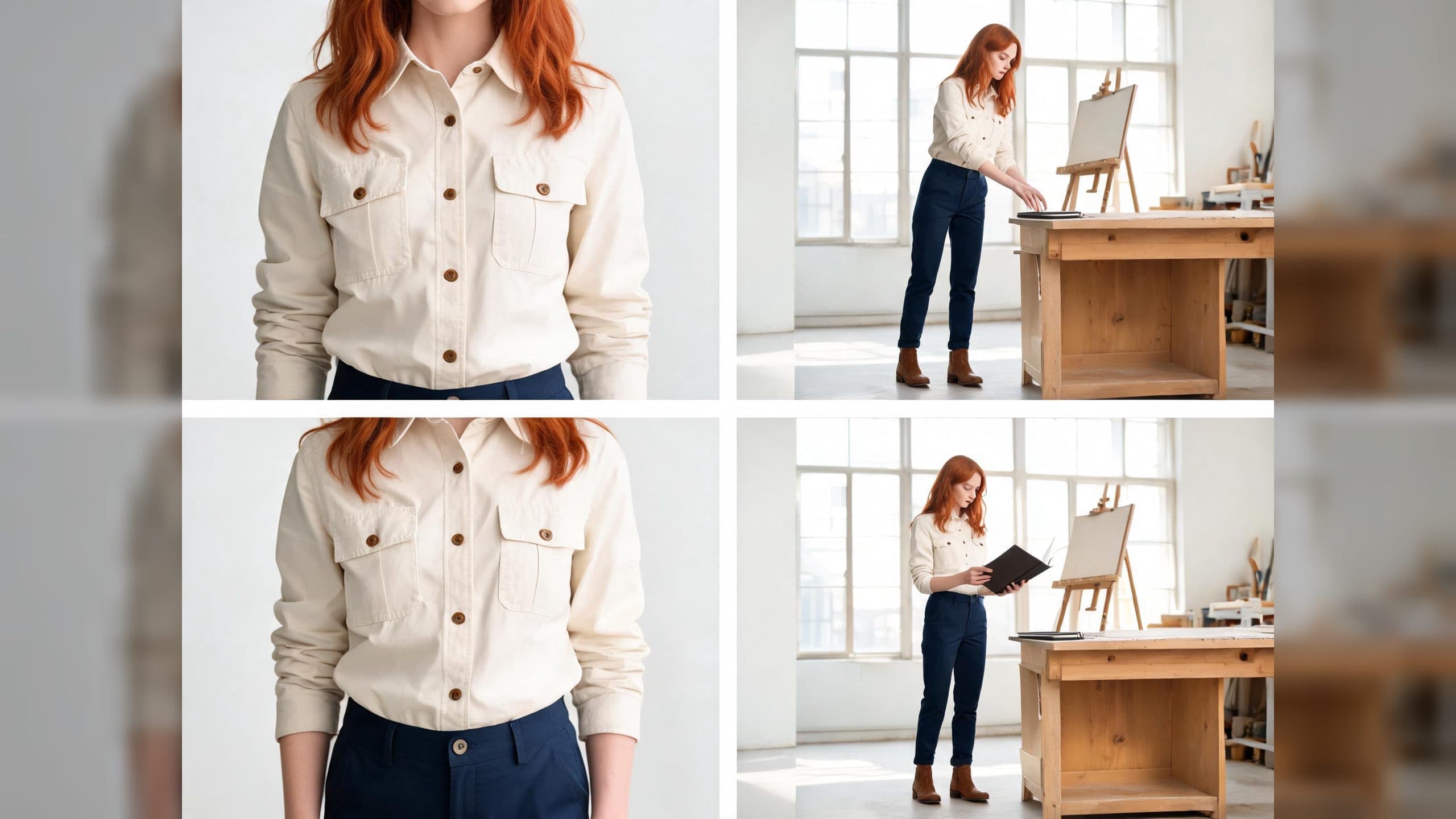
AI Video Character Reference Framing: Match Portraits to Landscape Shots
Prepare vertical character portraits for landscape AI video by matching aspect ratio, body scale, headroom, floor space, and movement room before generation.