

ArtArch Newsroom
Producer's NoteHow to Repair Garbled Text in an AI Image Without Losing the Layout
Repair garbled text in an AI image by isolating the title area, locking the rest of the layout, and checking every character before approval.
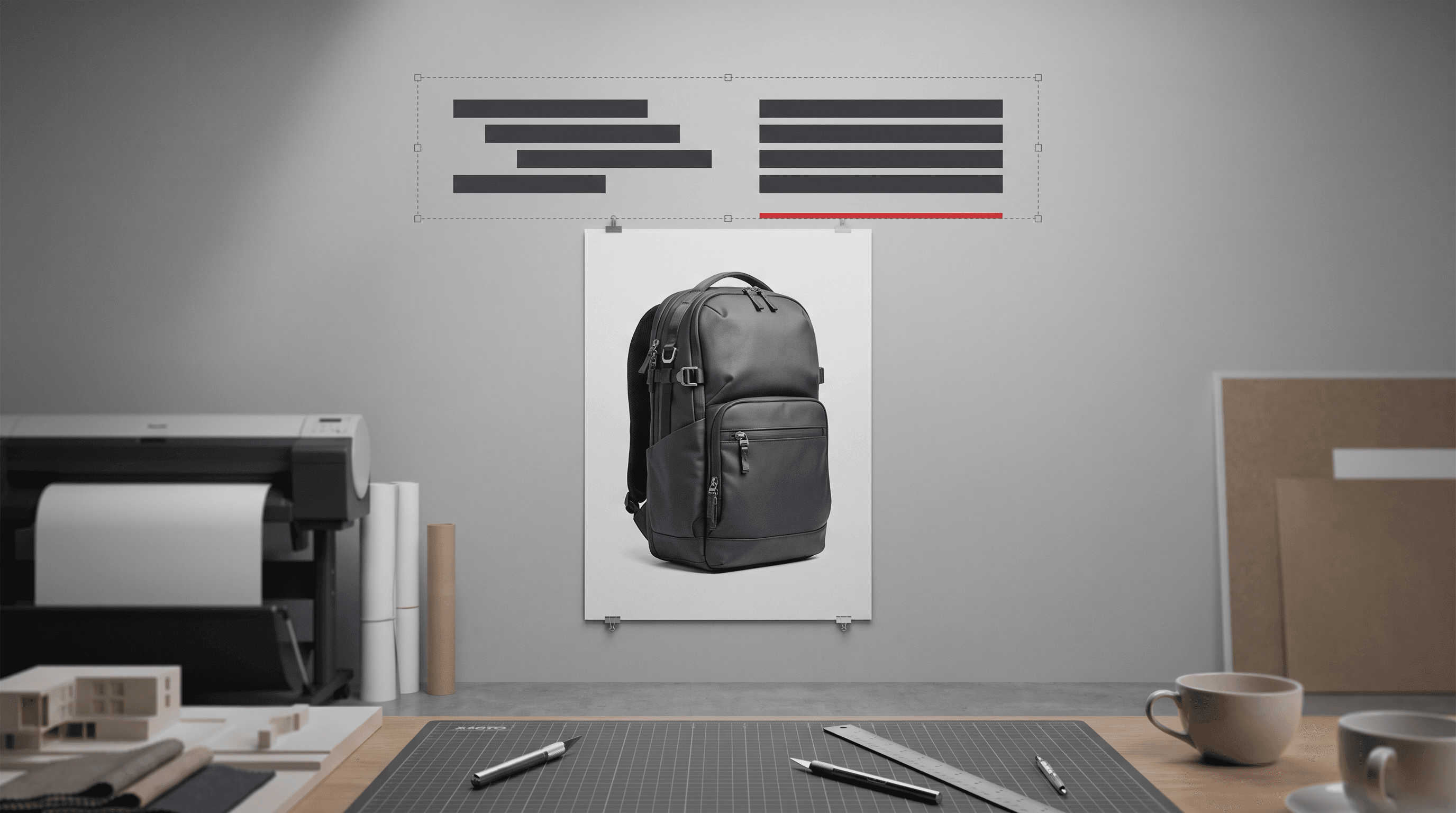
Provide an AI-generated poster with one damaged title to repair garbled text in an AI image while keeping the product, background, accent graphics, and crop visually stable. The practical goal is not simply a cleaner-looking poster. It is an exact line of copy inside a controlled edit area, followed by a character-by-character review.
Define one repair area
Name the title box as the only permitted change area. Quote the replacement text exactly, including capitalization, spacing, and punctuation. Then describe the title's position, baseline, font category, scale, color, and alignment so the new line has a clear visual target.
Treat every other element as an invariant. For a product poster, that list may include the product silhouette, seams, zippers, straps, buckles, pedestal, accent stripe, background tone, lighting, crop, and subtitle. Specific locks make the result easier to compare with the source.
Use a preservation-first edit prompt
A compact edit instruction can follow this order:
- Identify the title box as the edit area.
- Quote the required replacement text exactly.
- Match the original hierarchy and placement.
- List the product and layout details that must remain unchanged.
- Exclude additional words, logos, marks, and unrelated restyling.
This structure separates the requested change from the preservation rules. It also creates a review checklist before the image reaches a campaign, storefront, or presentation.
What one controlled comparison showed
In a single Nanobanana Pro comparison, both edits started from the same vertical backpack poster and targeted the exact headline NORTHLINE STUDIO. The full-poster redraw corrected the first damaged word but still returned STUOIO. The title-box-only instruction also retained STUOIO and added a blurred mark inside the first word.
The product, subtitle, red stripe, gray background, and overall crop remained close to the source in both outputs. The useful result was therefore a review rule: a tightly bounded prompt can describe where the edit belongs, but exact copy still requires literal character verification. This test used a named edit area in the prompt; it did not use a pixel mask.
Review text before visual polish
Read the result as text before judging its style. Compare every character with the approved copy, then check spaces, repeated letters, punctuation, and line breaks. A title that looks typographically convincing can still contain a transposition that makes it unusable.
After the copy passes, compare the title's baseline, width, weight, and distance from nearby graphics. Finish with the non-text locks: product geometry, small labels, background shapes, lighting, and crop. This order prevents an attractive composition from hiding a spelling failure.
Keep creating
Explore the idea, then make it yours.
Discover more creative workflows in Spotlight, or open ArtArch Studio to start creating now.
Keep exploring
More in Producer's Note
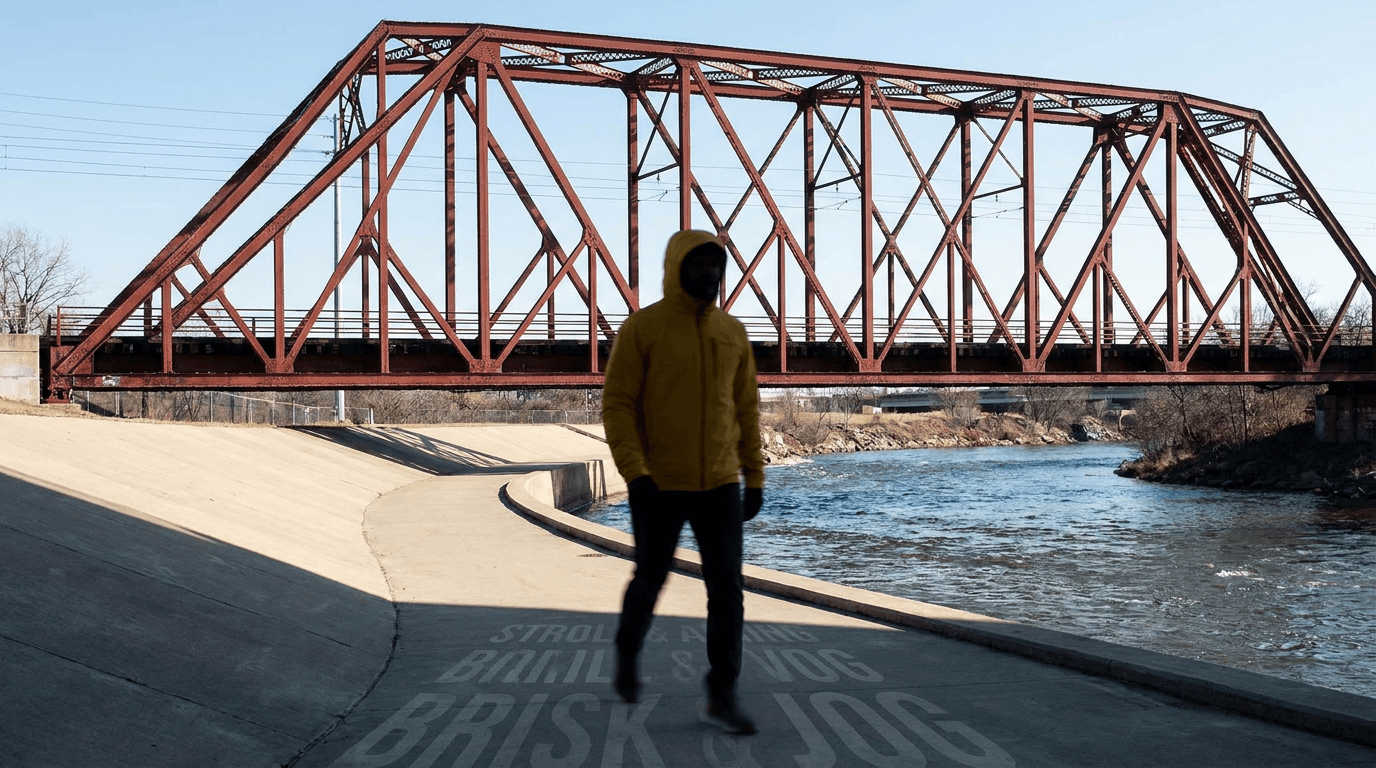
AI Video Action Verb Motion Control for Walking Speed
Learn how action verbs such as fast-walks and briskly strides shape walking speed and stride length in an AI video scene.

Remove Pseudo Quality Words from AI Image Prompts
Replace generic 4K and 8K slogans with concrete material, lighting, and texture constraints when you want a cleaner AI image prompt.
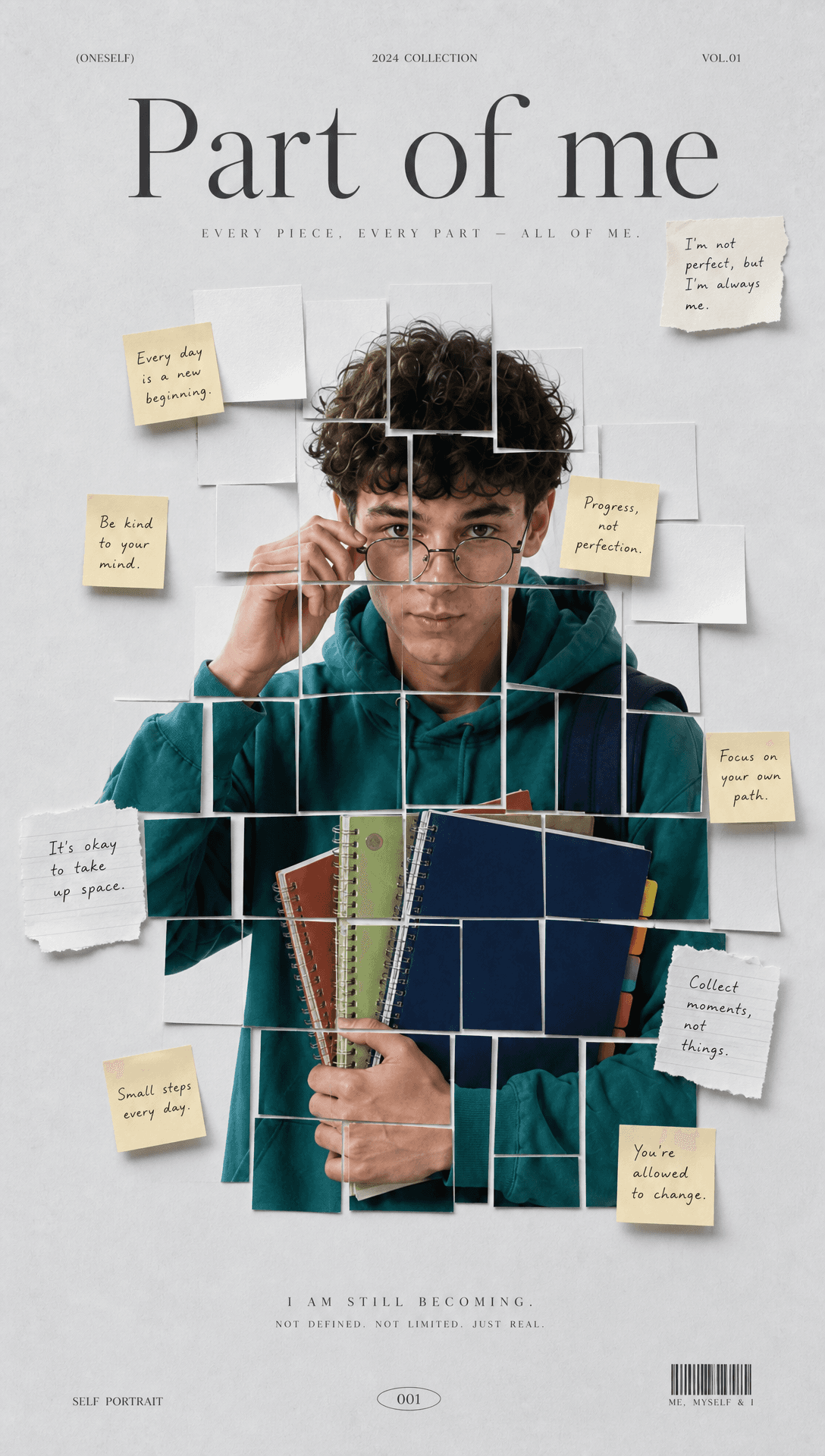
Sticky Note Portrait Collage from Photo: Make a Personal Visual Story
Upload one portrait to create a sticky note portrait collage from photo with layered fragments, handwritten notes, paper shadows, and magazine styling.
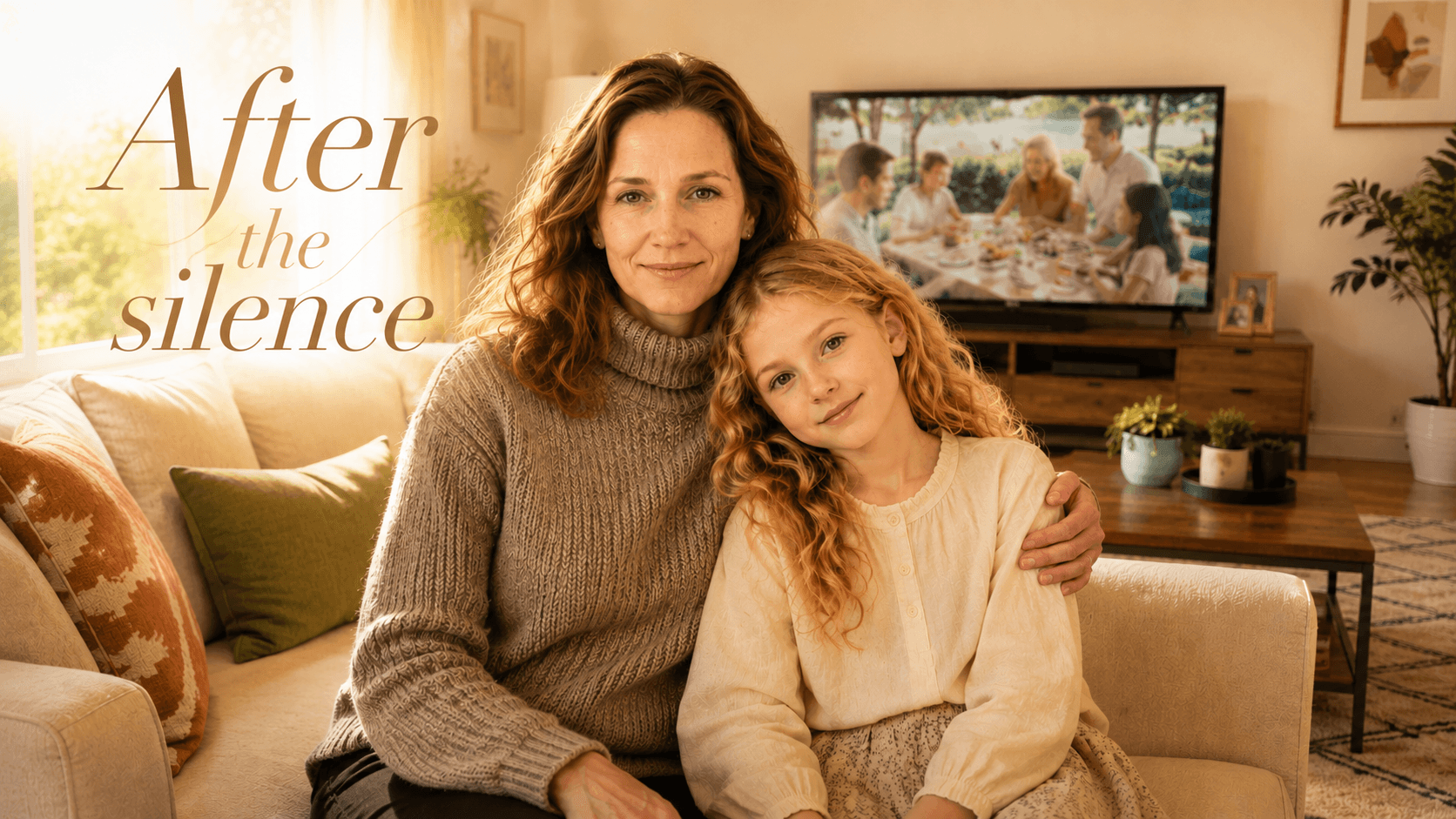
Family Trauma Short Film: After the Silence
Watch a family trauma short film told through Lydia's childhood drawings, fractured memories, her mother's courage, and the silence a child remembers.