

ArtArch Newsroom
Producer's NoteForeground Occlusion Transition AI Video: Verify the Cut Before Judging It
Build a foreground occlusion transition AI video by matching direction and speed, then verify the pre-cut, full-cover, and reveal frames.
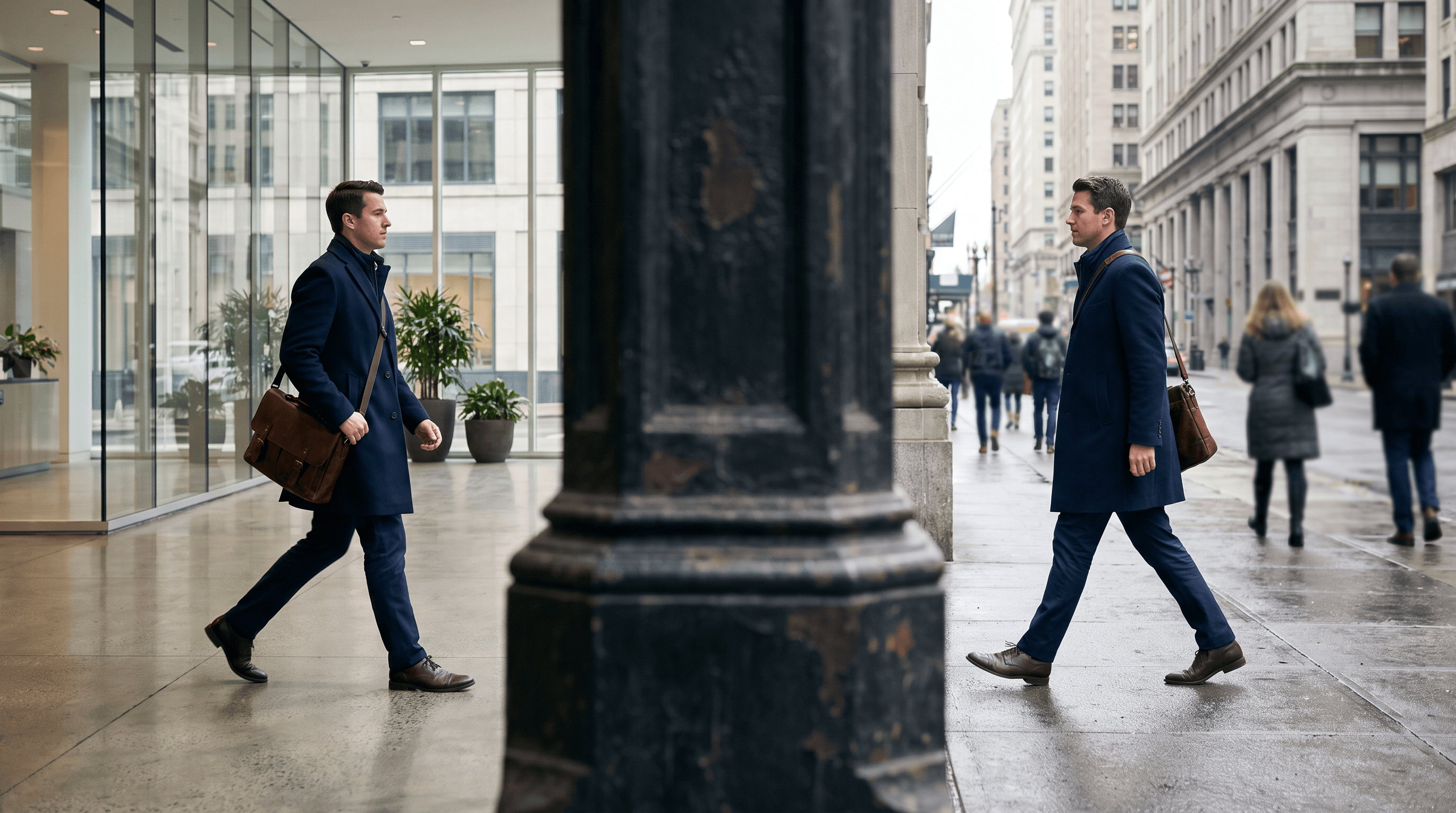
Provide two connected scene beats and one foreground object to create a foreground occlusion transition AI video. The object crosses close to the lens, covers the frame at the cut, and reveals the next location while the subject keeps the same direction, speed, and screen position.
Give the transition one physical anchor
Choose an object that can plausibly fill the frame: a pillar, doorway edge, passing vehicle, wall, coat, or dark foreground shape. In the first scene, state where it enters and the direction it travels. At the cut, require complete frame coverage. In the next scene, use the same edge and direction to reveal the new space.
Keep the subject's stride, camera height, framing, and travel direction stable. These shared properties give the viewer continuity while the hidden cut changes the environment.
Write three visible checkpoints
Review the transition as three separate events:
- Pre-cut: the first scene is readable and the foreground object approaches the lens.
- Cover frame: the object fills the image with no exposed background.
- Reveal: the next scene appears from the same edge while the subject continues moving.
These checkpoints are more useful than a general request for a “smooth cinematic transition.” They tell the creator exactly which frames must exist before judging polish.
What one controlled test revealed
A 10-second Seedance 2.0 comparison used the same commuter direction and two planned locations. The control requested a direct cut at five seconds. The technique version added a close foreground pillar that should fully cover the frame before revealing the street.
Frames extracted at four, five, six, and nine seconds showed both outputs remaining inside their respective office lobbies. The street scene never appeared, and the technique output did not produce a full-frame pillar occlusion. The comparison therefore did not establish a transition winner. It established an acceptance gate: confirm the first scene, cover frame, and second scene before evaluating smoothness.
A practical production flow
First generate or select the two usable scene clips. Next identify a compatible foreground shape and match its direction at the outgoing and incoming edges. Then inspect frames immediately before, during, and after the cut. Only after all three states exist should you compare speed, subject placement, and visual continuity.
For a difficult generation, separating the outgoing and incoming clips can make the checkpoints easier to control. The final edit can place the cut inside the darkest or most complete moment of coverage.
Useful scenes
Lobby to street
A structural column can cover the lens as a commuter moves from an interior corridor to the sidewalk.
Storefront to product close-up
A passing customer or display edge can hide the cut from a wide retail view to a product detail.
Hallway to event space
A doorway edge can bridge two spaces while a presenter continues walking in the same direction.
Frequently asked questions
How complete should the occlusion be?
The foreground object should cover the full frame at the cut so no unmatched background remains visible.
What needs to match after the cut?
Prioritize movement direction, apparent speed, subject position, camera height, and the revealing edge.
Which frame should contain the edit?
Place the edit at the moment of maximum coverage, when the foreground object hides both environments.
How should a failed test be reviewed?
Check whether the pre-cut approach, full-cover frame, and post-cut reveal occurred. Do not score smoothness when one of those events is missing.
Click the template card on this page, enter the experience page, and try the template.
Keep creating
Explore the idea, then make it yours.
Discover more creative workflows in Spotlight, or open ArtArch Studio to start creating now.
Keep exploring
More in Producer's Note
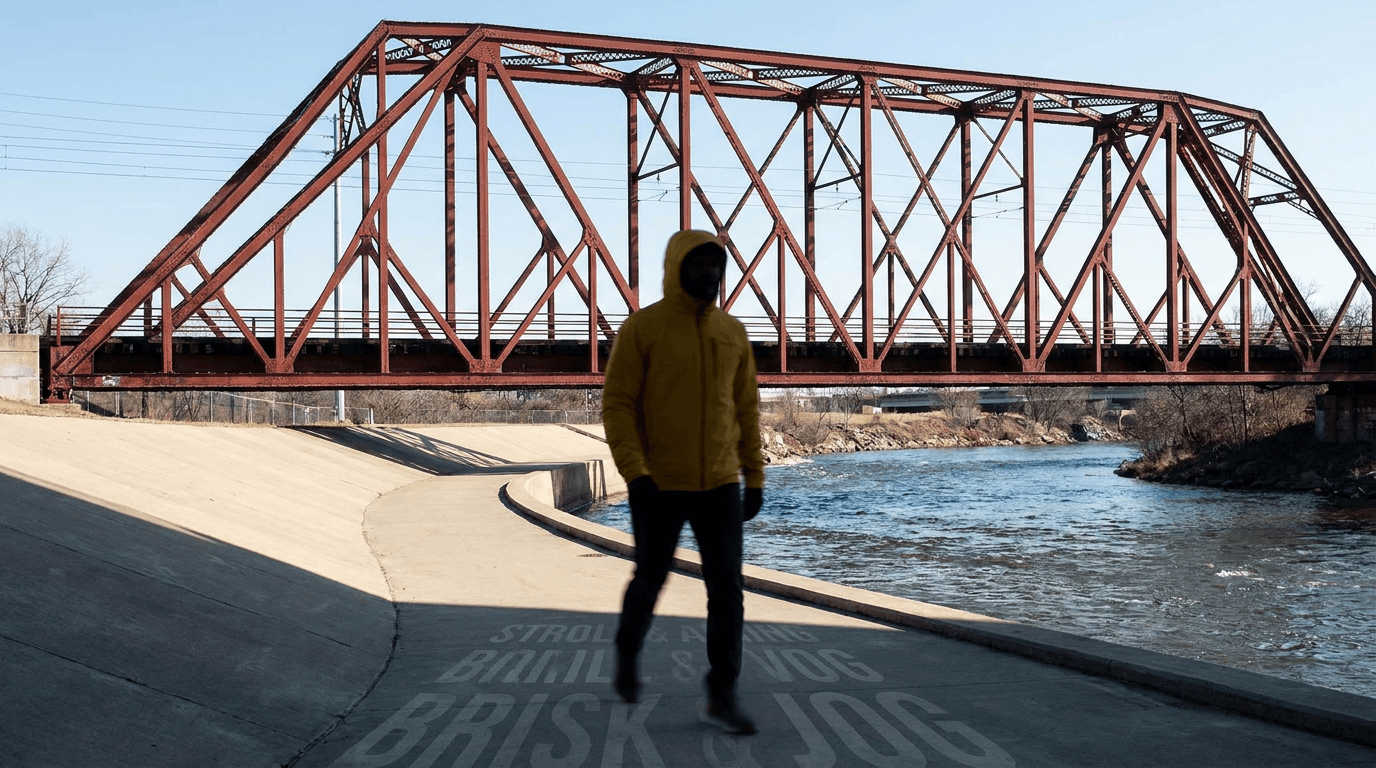
AI Video Action Verb Motion Control for Walking Speed
Learn how action verbs such as fast-walks and briskly strides shape walking speed and stride length in an AI video scene.

Remove Pseudo Quality Words from AI Image Prompts
Replace generic 4K and 8K slogans with concrete material, lighting, and texture constraints when you want a cleaner AI image prompt.
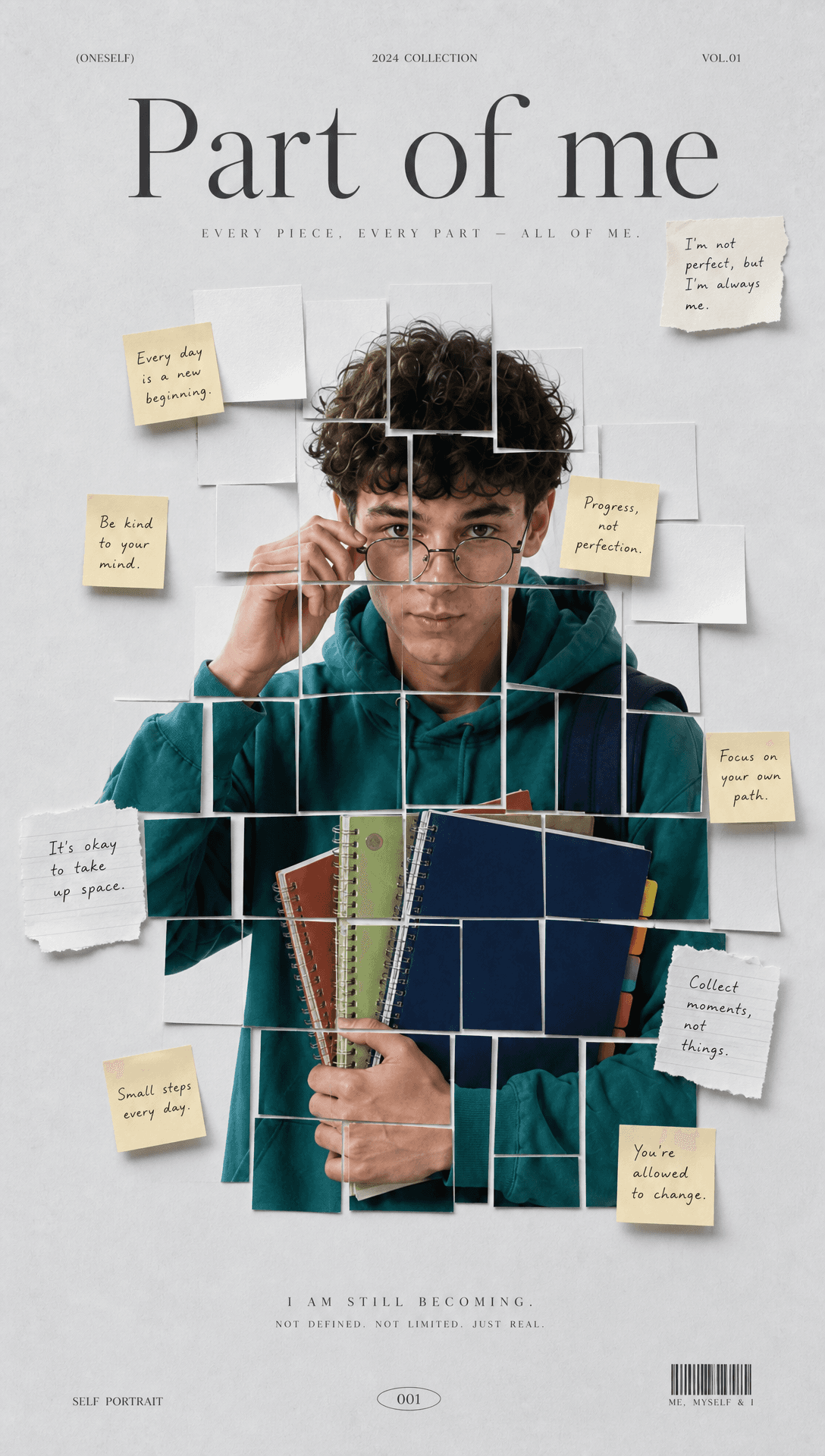
Sticky Note Portrait Collage from Photo: Make a Personal Visual Story
Upload one portrait to create a sticky note portrait collage from photo with layered fragments, handwritten notes, paper shadows, and magazine styling.

Family Trauma Short Film: After the Silence
Watch a family trauma short film told through Lydia's childhood drawings, fractured memories, her mother's courage, and the silence a child remembers.