

ArtArch Newsroom
AcademyMiniMax H3 Voice Cloning and Tone Transfer Workflow
Prepare a supported audio reference and video context for MiniMax H3 voice tone transfer, then review delivery, timing, and character performance.
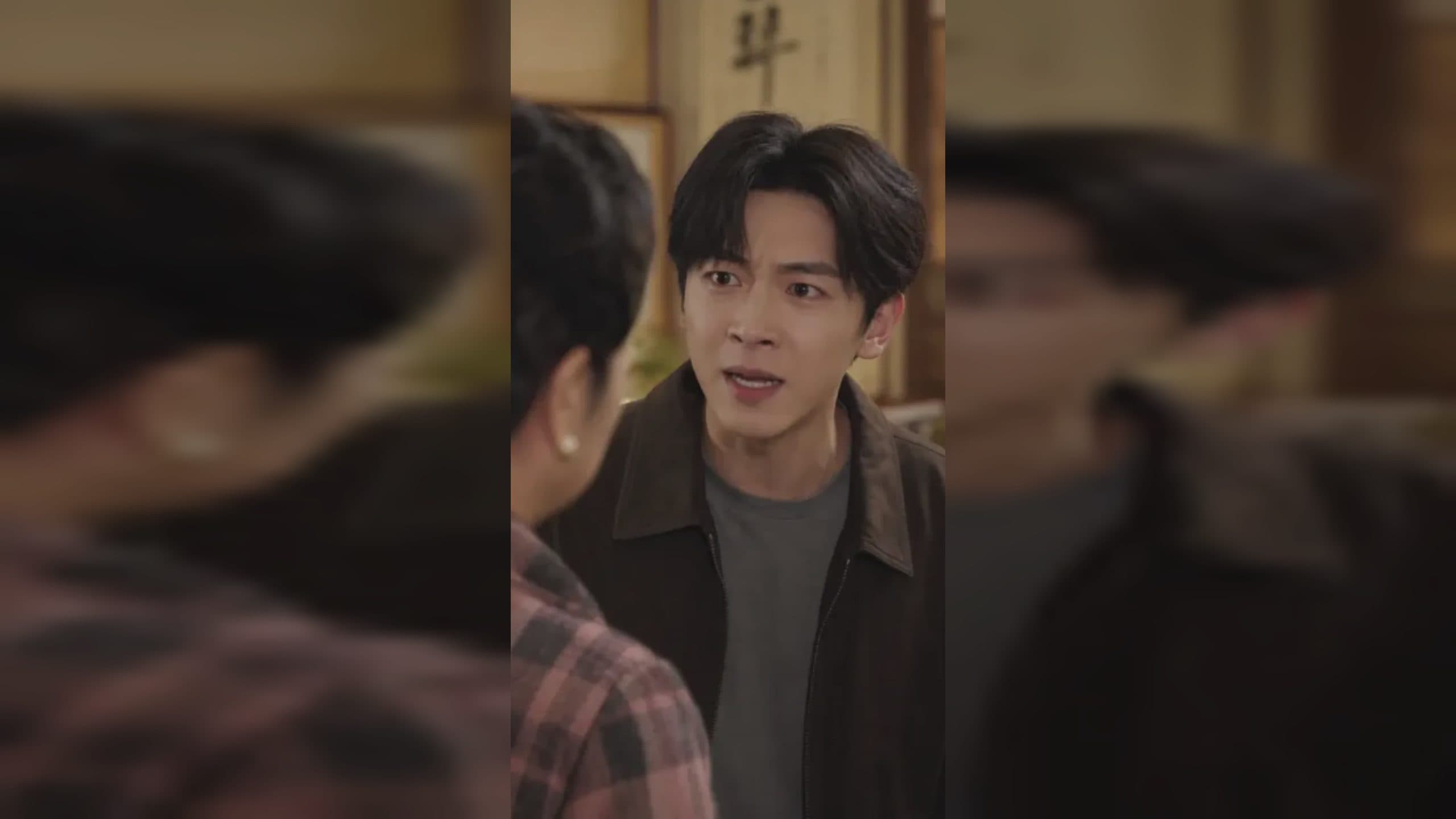
MiniMax H3 voice cloning and tone transfer workflow
MiniMax H3 voice cloning is most useful when it is treated as part of a complete performance, not as an isolated audio trick. In Omni Reference, an audio clip can communicate vocal tone while an image or video supplies the required visual context. The prompt then defines the new line, speaker, emotion, and moment in the scene.
The launch manual describes audio-reference capabilities, but it does not promise a perfect identity match in every generation. A practical workflow therefore separates what the reference should preserve from what the new scene should change.
Supplied H3 demonstration: a new spoken performance guided by an audio reference.
Prepare one clean vocal purpose
Choose a reference in which the intended speaker is easy to hear. Avoid competing voices, loud music, or effects that make the delivery ambiguous. WAV and MP3 are supported, and each audio file can be 2 to 15 seconds long with a 15 MB limit. Across one request, audio references may total no more than 15 seconds.
Audio cannot be the only reference. Pair it with an image that establishes the character, or a video that also communicates the desired performance and timing.
Write the new performance as direction
State who speaks, the exact words, the emotion, pace, and physical behavior. For example, distinguish a restrained warning from an excited announcement. If the character pauses, turns, whispers, or raises their voice, place those changes on the shot timeline.
Do not ask one audio clip to define voice identity, background music, room ambience, and edit rhythm without saying which role matters most. When several sound goals are important, name each reference by function.
Review identity and scene fit separately
First listen for vocal qualities: pitch, rhythm, pronunciation, breath, and emotional contour. Then watch the result for lip timing, facial effort, body language, and whether the voice belongs in the depicted space. A close indoor scene should not sound like a distant stage recording unless that contrast is intentional.
For recurring characters, keep the same approved reference and a short record of pronunciation decisions. Change one variable at a time when revising. This makes it easier to tell whether a mismatch came from the line, performance direction, visual reference, or sound context.
Frequently asked questions
Can MiniMax H3 use an MP3 as a voice reference?
Yes. The manual lists MP3 and WAV for standalone audio references.
Can I submit only a voice recording?
No. An audio reference must be accompanied by an image or video.
How many audio clips can one request include?
Omni Reference supports up to three audio clips, subject to the 12-file mixed total and 15-second total audio duration.
Prepare the character image, clean voice reference, exact line, and performance direction in ArtArch, then judge the voice and the visible performance as separate review passes.
Keep exploring
More in Academy

MiniMax H3 Production Checklist for Commercial Video Teams
Review MiniMax H3 inputs, rights, prompt scope, identity, product accuracy, audio, format, retries, approvals, and delivery before production.

MiniMax H3 API Media Formats and URL Input Checklist
Prepare MiniMax H3 API media with supported codecs, image and audio formats, file limits, 64 MB request bodies, and URL-based inputs.
How to Plan 12 Reference Files for MiniMax H3
Assign clear identity, product, style, motion, camera, and audio roles across a MiniMax H3 mixed request without creating contradictory references.
Use MiniMax H3 for Storyboard and Visual Pitch Previews
Turn keyframes and a creative brief into a MiniMax H3 motion preview for shot order, transitions, timing, sound, and stakeholder review.