

ArtArch Newsroom
AcademyMiniMax H3 Video Editing: What You Can Change in an Existing Clip
Plan MiniMax H3 edits for subjects, objects, backgrounds, lighting, dialogue, sound, and effects while protecting unchanged scene details.
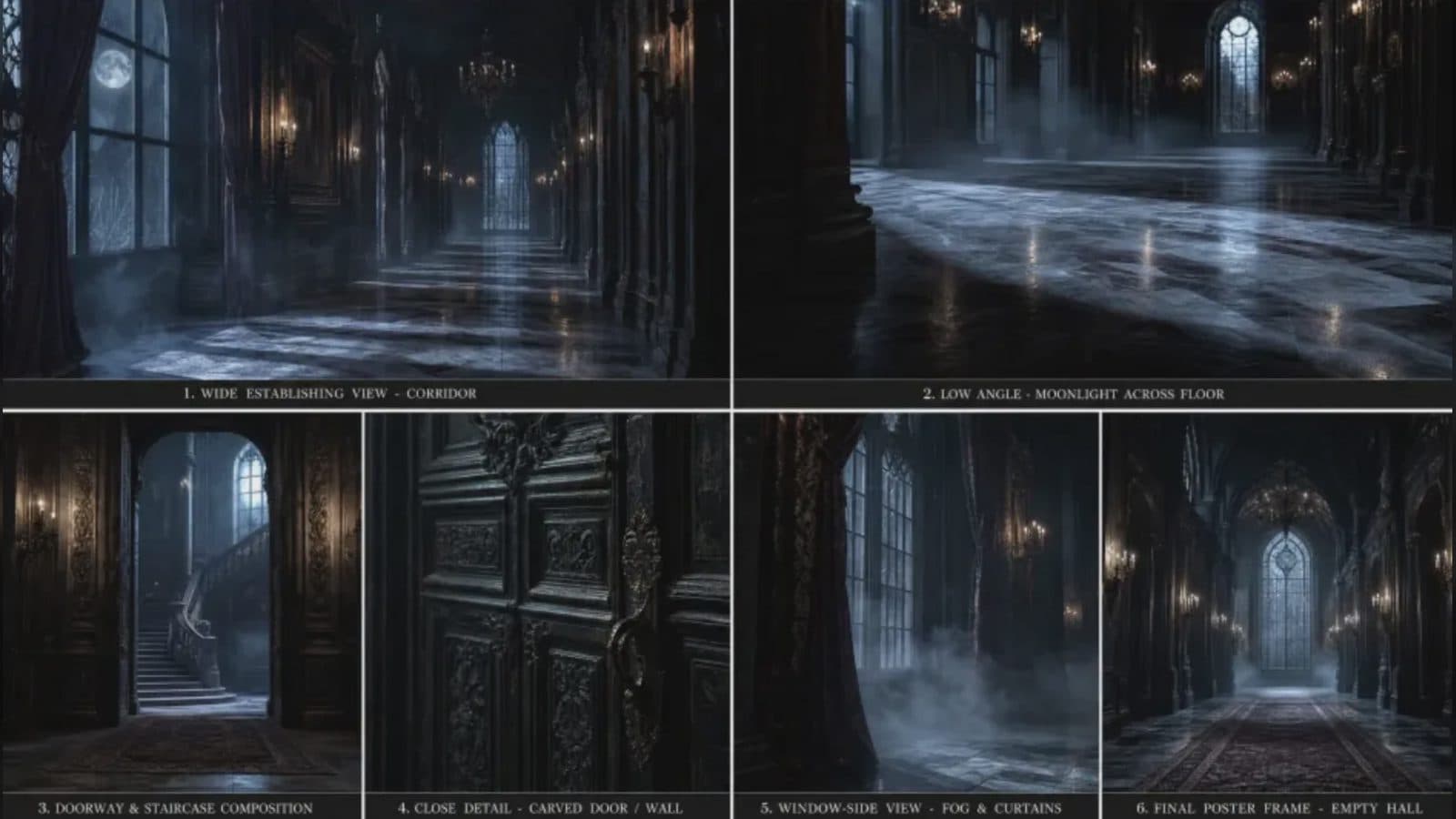
MiniMax H3 video editing: what you can change in an existing clip
MiniMax H3 video editing can start from an existing shot and a precise change request. The supplied manual shows editing directions that replace subjects or backgrounds, add people or effects, alter lighting, and change dialogue or sound. The critical production skill is defining the edit boundary: what changes, what stays, and how the new element must interact with the original scene.
Treat the source video as evidence for timing, camera, blocking, and continuity. Do not rewrite those qualities accidentally when the request concerns only one object.
Supplied H3 demonstration: several explicit object, background, and dialogue changes are applied in one edit.
Write an edit contract
Name the target first. Then describe the replacement or addition, its position and timing, and the properties that must remain unchanged. A focused brief might replace one jacket while preserving the person's face, body movement, camera path, background, and all other wardrobe.
For removals, describe what should fill the space and which shadows or reflections must disappear. For additions, specify scale, contact, occlusion, and light direction. A new person in a group needs more than a visual description; they need a location and an action that fits the scene.
Supply references by role
The source clip defines the original shot. Images can define a new person, product, costume, or environment. Audio can define a new line or vocal quality, but it must accompany image or video input. Label each role in the prompt so an appearance image is not mistaken for a composition target.
Reference videos must be 2 to 15 seconds, and their combined duration is capped at 15 seconds. This encourages choosing the precise section that contains the edit rather than uploading a long sequence.
Compare before and after systematically
Review the source and result side by side. Check camera motion, frame timing, subject positions, hands, edges, shadows, reflections, and background movement. For dialogue edits, listen for speaker identity, lip timing, ambience, and whether unchanged sounds survived.
Keep a short acceptance list before generating. If the edit passes on the target but fails on a protected detail, the result is not complete. Revise by naming that protected detail instead of broadening the prompt with unrelated style language.
Frequently asked questions
What kinds of edits does the manual demonstrate?
It includes subject and object changes, additions, background replacement, relighting, dialogue and sound changes, and visual effects.
Can MiniMax H3 edit a 30-second source clip in one request?
The listed reference-video duration is 2 to 15 seconds, so select the relevant section and plan longer work as separate shots.
Should I describe unchanged parts?
Yes. Explicit preservation instructions make the edit boundary reviewable.
Load the source shot and only the necessary replacement references in ArtArch, then approve the result against both the requested change and the protected original details.
Keep exploring
More in Academy

MiniMax H3 Production Checklist for Commercial Video Teams
Review MiniMax H3 inputs, rights, prompt scope, identity, product accuracy, audio, format, retries, approvals, and delivery before production.

MiniMax H3 API Media Formats and URL Input Checklist
Prepare MiniMax H3 API media with supported codecs, image and audio formats, file limits, 64 MB request bodies, and URL-based inputs.
How to Plan 12 Reference Files for MiniMax H3
Assign clear identity, product, style, motion, camera, and audio roles across a MiniMax H3 mixed request without creating contradictory references.

Use MiniMax H3 for Storyboard and Visual Pitch Previews
Turn keyframes and a creative brief into a MiniMax H3 motion preview for shot order, transitions, timing, sound, and stakeholder review.