

ArtArch Newsroom
AcademyMiniMax H3 Native Audio: How to Plan Sound With Video
Plan dialogue, ambience, effects, and timing for MiniMax H3 native stereo output, then review sound and picture as separate deliverables.
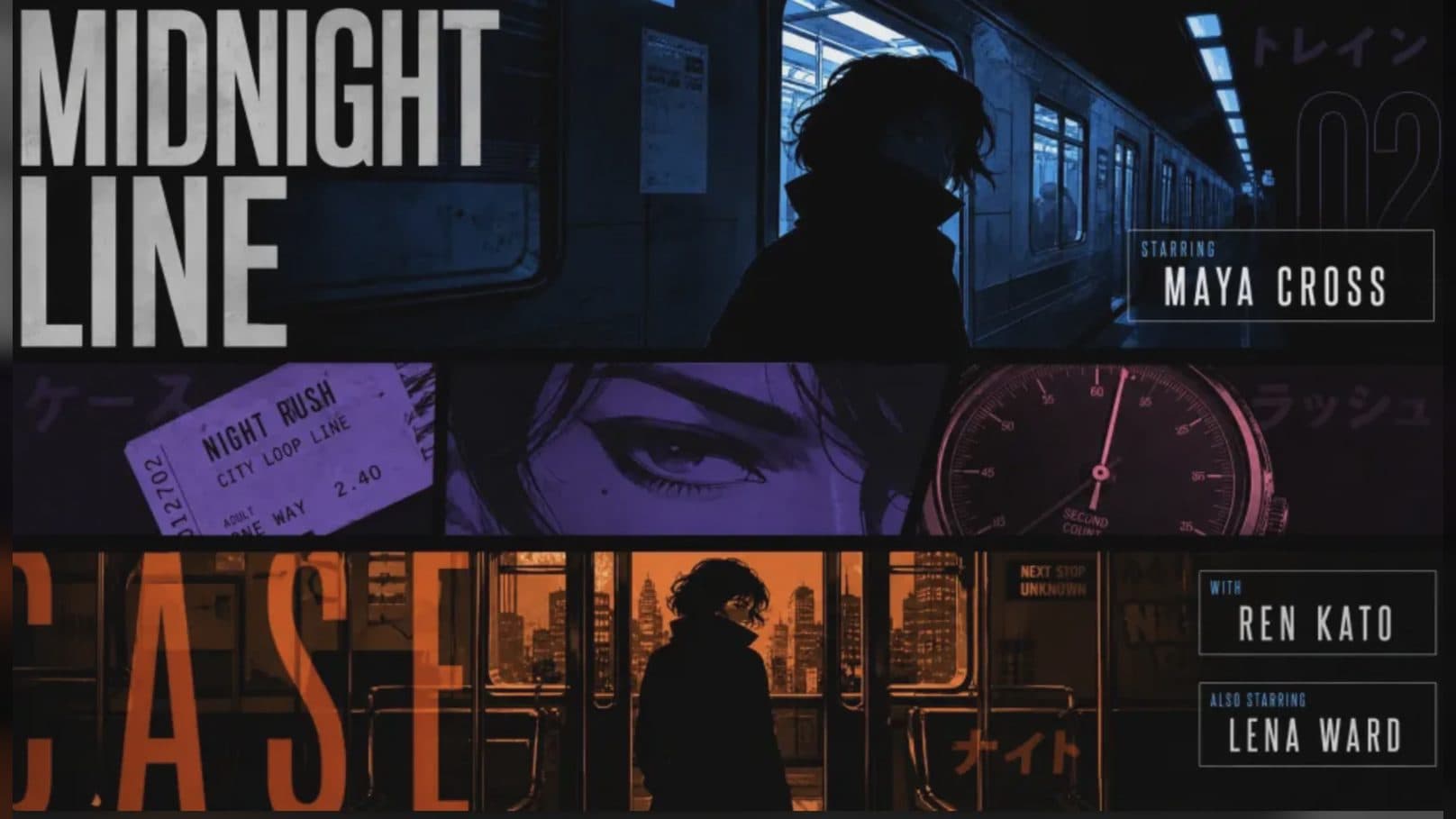
MiniMax H3 native audio: how to plan sound with video
MiniMax H3 native audio is part of every generated result described in the launch manual. The output is stereo, and the model can receive audio references alongside images or video in Omni Reference. This turns sound into a first-class part of the shot rather than a track added after the picture is approved.
Planning sound early changes the prompt. Action, camera, dialogue, effects, ambience, and music need a shared timeline within 5 to 15 seconds.
Choose the sound that carries the scene
A short clip rarely needs a full dialogue scene, dense music, constant effects, and detailed ambience at the same time. Decide what communicates the beat.
A trailer may rely on a low pulse, one transition sweep, and a title impact. A kitchen scene may need room tone, water drops, a cup tap, footsteps, and breathing. A product reveal may use a mechanical click and a controlled music accent.
Write sounds next to the actions that cause them. "The cap clicks when it locks" is reviewable. "Add immersive sound design" is not.
Use audio references for a defined role
Omni Reference accepts up to three audio clips. Each can last 2 to 15 seconds, with 15 seconds total across the request. Audio must accompany an image or video.
An audio reference may define voice tone, a spoken line, music rhythm, or performance timing. State that role in the prompt. If the reference provides a voice, write the exact new line separately. If it provides rhythm, identify the visual action that should land on the beat.
Supported standalone audio formats are WAV and MP3. The per-file size limit is 15 MB.
Review sound without the picture
Listen once with the screen hidden. Check words, speaker order, noise, channel balance, ambience, music changes, and the beginning and ending of the track. A visually convincing result can distract from a wrong line or an unexplained sound.
Then watch the clip with audio. Check lip timing, footsteps, impacts, object sounds, room reflections, and cuts. Listen through headphones and speakers because stereo placement and low-frequency effects can behave differently.
Preserve an editable path
Keep the original H3 output even if the final mix will be rebuilt. Editors need it to understand timing and performance. Record which sound elements passed review and which will be replaced.
For dialogue, verify names, product terms, and pronunciation before creating a series. For music-led work, check that the visual beats stay aligned after any trim or platform transcode.
Frequently asked questions
Does every MiniMax H3 result include audio?
The launch manual states that all results include native stereo sound.
Can I upload an MP3 reference?
Yes. MP3 and WAV are listed for standalone audio input.
Can audio be the only H3 input?
No. Omni Reference requires audio to be paired with an image or video.
Write the sound timeline beside the visual shot in ArtArch, then review the H3 picture and stereo output as two connected deliverables.
Keep exploring
More in Academy

MiniMax H3 Production Checklist for Commercial Video Teams
Review MiniMax H3 inputs, rights, prompt scope, identity, product accuracy, audio, format, retries, approvals, and delivery before production.

MiniMax H3 API Media Formats and URL Input Checklist
Prepare MiniMax H3 API media with supported codecs, image and audio formats, file limits, 64 MB request bodies, and URL-based inputs.
How to Plan 12 Reference Files for MiniMax H3
Assign clear identity, product, style, motion, camera, and audio roles across a MiniMax H3 mixed request without creating contradictory references.
Use MiniMax H3 for Storyboard and Visual Pitch Previews
Turn keyframes and a creative brief into a MiniMax H3 motion preview for shot order, transitions, timing, sound, and stakeholder review.