

ArtArch Newsroom
AcademyCreate Game UI Motion Concepts With MiniMax H3
Use MiniMax H3 to prototype game UI transitions, character panels, selection states, camera changes, and interaction timing from references.
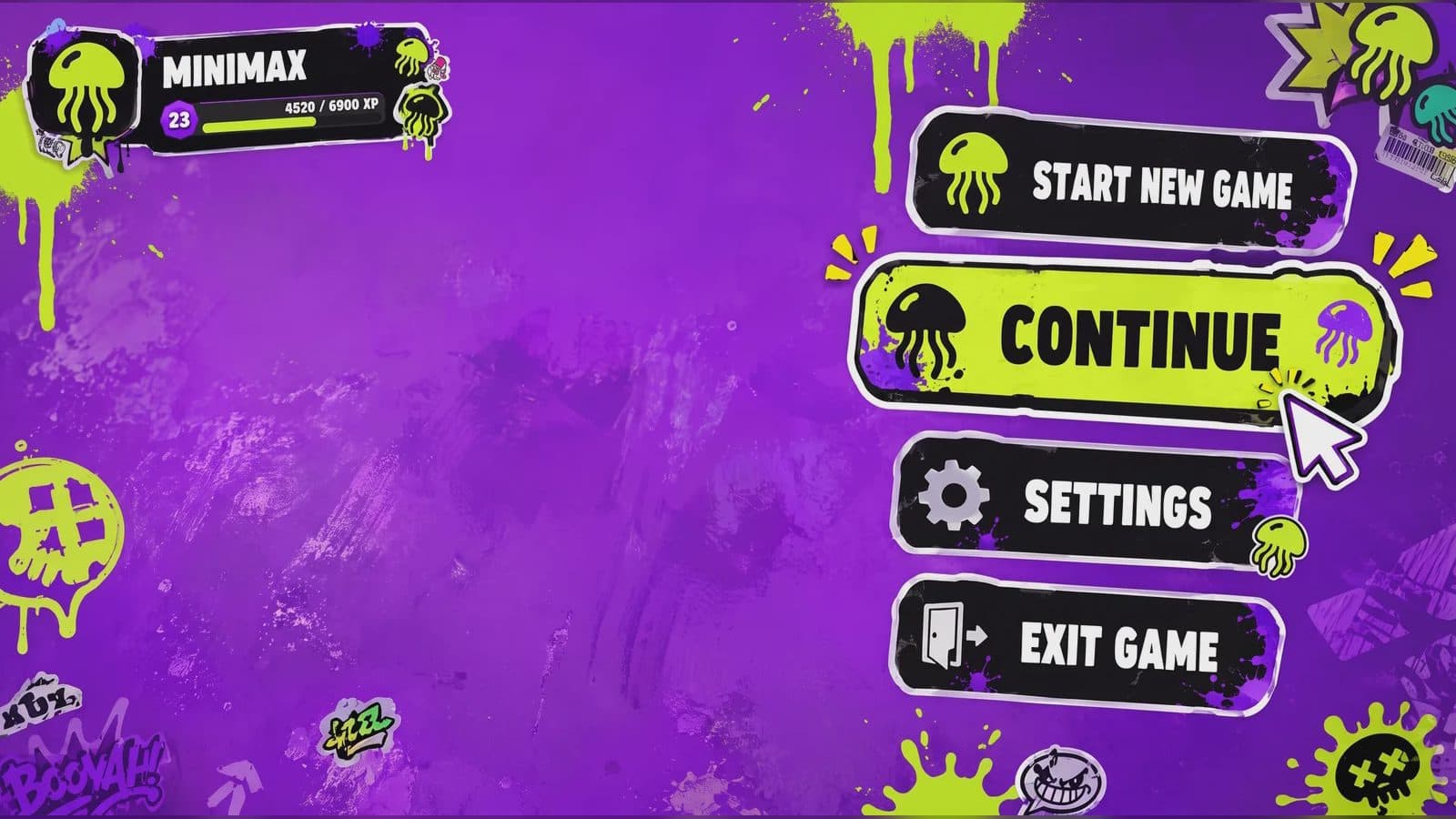
Create game UI motion concepts with MiniMax H3
A MiniMax H3 game UI video can help a team explore how a menu, character panel, inventory, or selection transition feels in motion. It is best treated as a visual concept, not an implementation specification. Buttons, states, and text still need to be rebuilt and tested in the game engine.
Reference images establish screen layout and art direction. A video reference can communicate interaction timing or camera behavior.
Supplied H3 demonstration: menu states, equipment changes, and a world transition form one UI motion concept.
Define one interaction path
Choose a start state, user action, transition, and end state. For example: the player selects a character, the panel expands, stats move into view, and the chosen state receives a visible highlight. Avoid combining inventory, combat, settings, and map navigation in one 15-second concept.
Label interface references by screen and state. Protect the hierarchy, character identity, icon families, and major panel locations. If text needs to be exact, plan to replace it in production and evaluate the H3 result mainly for motion and composition.
Direct motion with interface logic
State what triggers each transition and where attention should move. Panels should not animate merely because the scene needs energy. Use depth, scale, light, or camera shift consistently to show selection and navigation.
Choose 16:9 for a typical landscape game view or another supported ratio for the target device. A 24 FPS concept can communicate timing, but final responsiveness depends on engine implementation.
Review it as a prototype
Check whether the start and end states are understandable without explanation. Verify focus, selection feedback, panel continuity, icon placement, and whether the motion obscures critical information. Listen for hover, confirm, transition, and ambience cues, then note which sounds belong in the implementation.
Record decisions rather than treating generated pixels as production UI assets. The useful output is a shared motion direction and a list of states to build.
Frequently asked questions
Can MiniMax H3 generate a game menu concept?
Its image and video reference workflow can be used to visualize a short interface transition. Functional UI still requires implementation.
Can it preserve exact UI text?
Text should be checked carefully and normally rebuilt for production accuracy and accessibility.
How long can the interaction preview be?
The manual lists generated durations from 5 to 15 seconds.
Arrange the start state, interaction, transition rule, end state, and sound cues in ArtArch, then use the result as a motion review artifact for the game team.
Keep exploring
More in Academy
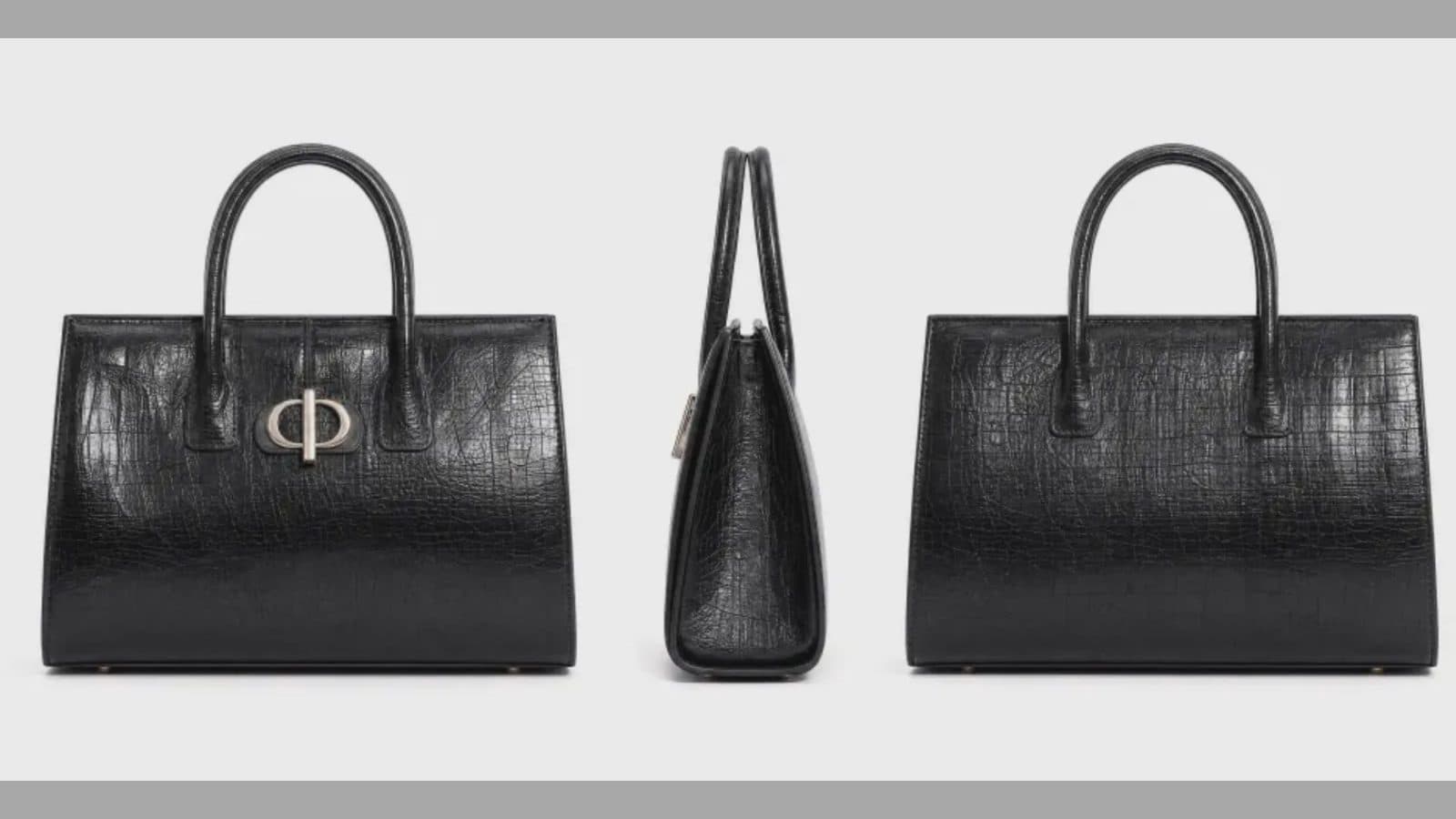
MiniMax H3 Production Checklist for Commercial Video Teams
Review MiniMax H3 inputs, rights, prompt scope, identity, product accuracy, audio, format, retries, approvals, and delivery before production.
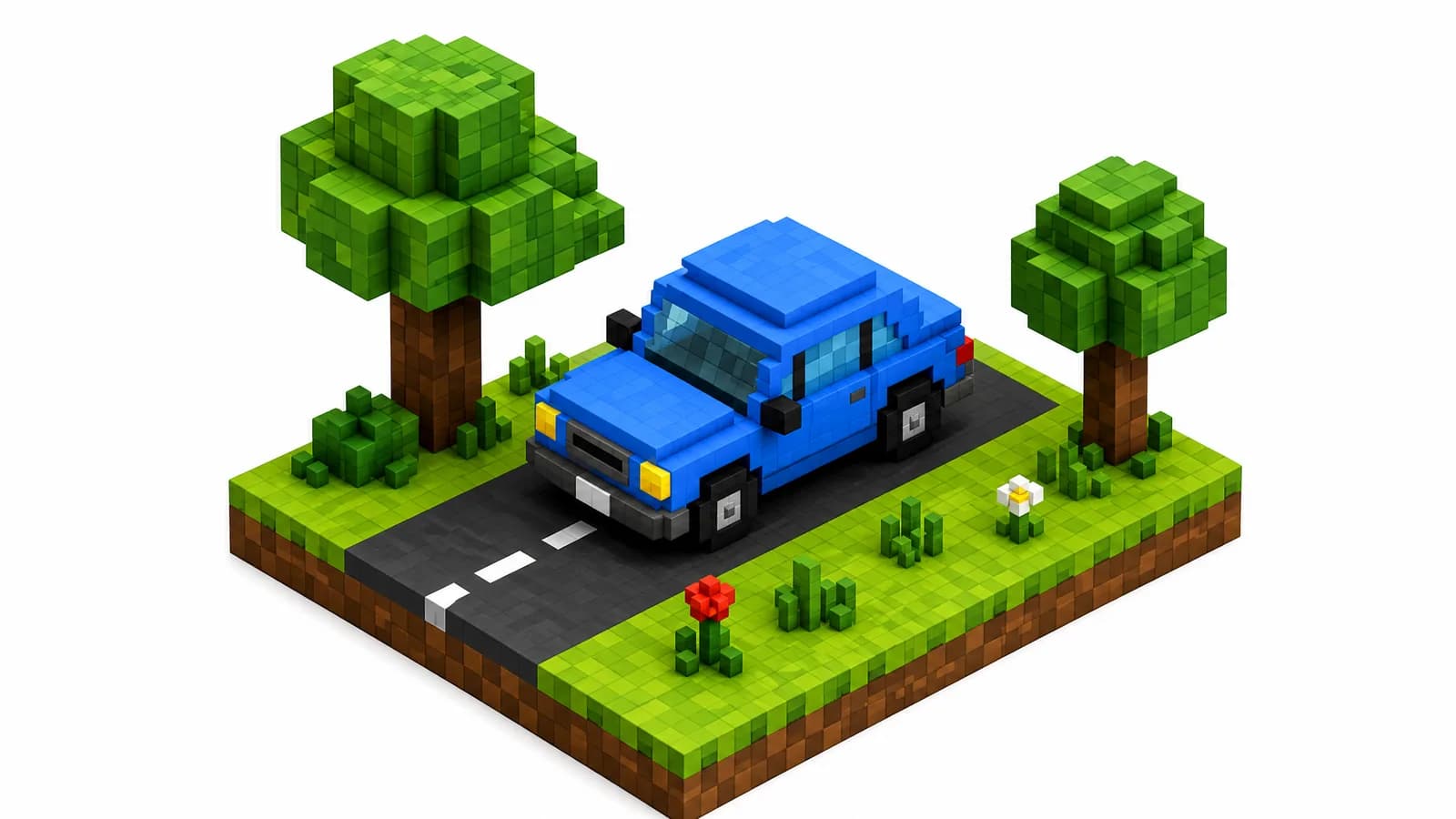
MiniMax H3 API Media Formats and URL Input Checklist
Prepare MiniMax H3 API media with supported codecs, image and audio formats, file limits, 64 MB request bodies, and URL-based inputs.
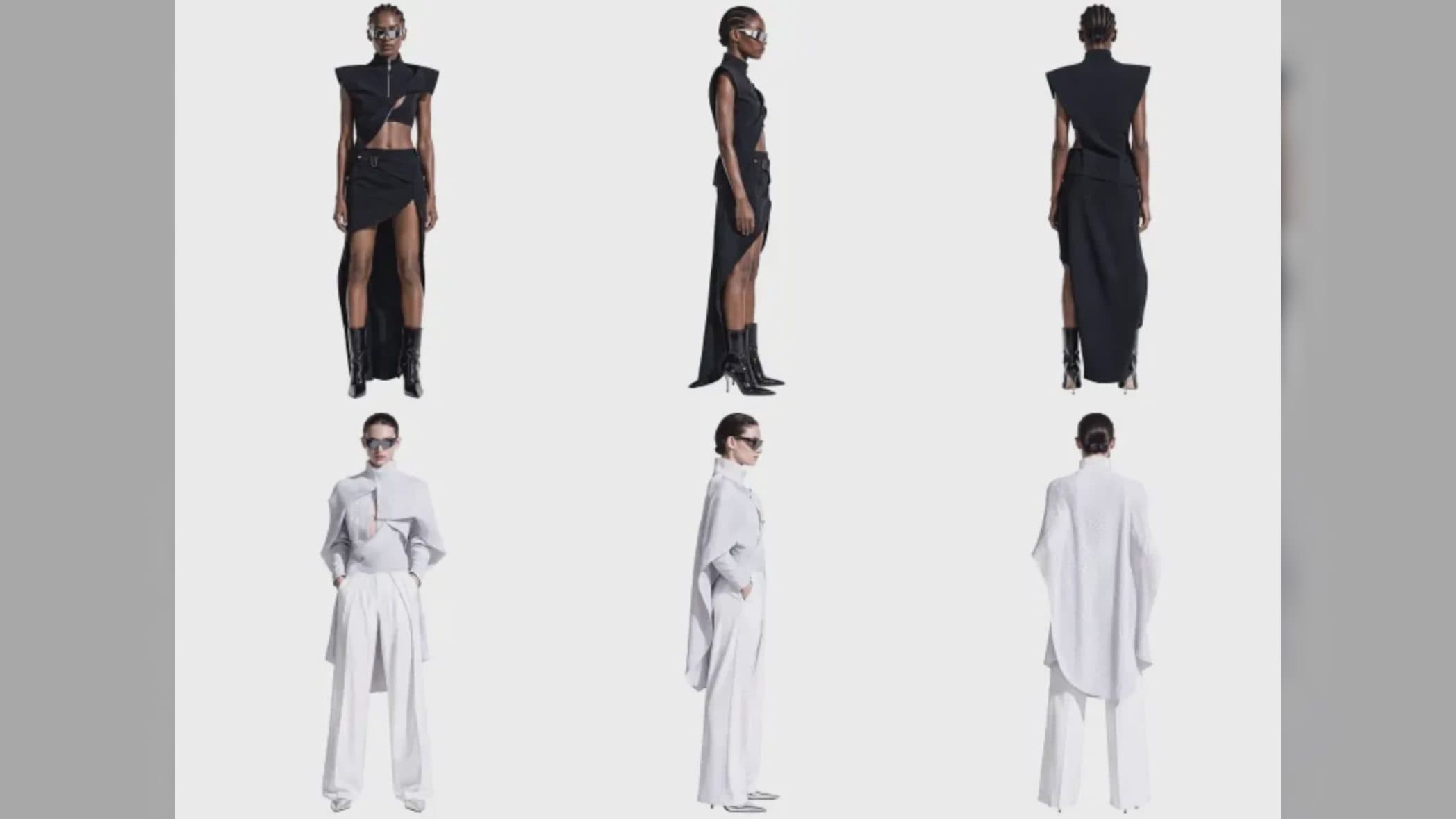
How to Plan 12 Reference Files for MiniMax H3
Assign clear identity, product, style, motion, camera, and audio roles across a MiniMax H3 mixed request without creating contradictory references.
Use MiniMax H3 for Storyboard and Visual Pitch Previews
Turn keyframes and a creative brief into a MiniMax H3 motion preview for shot order, transitions, timing, sound, and stakeholder review.