

ArtArch Newsroom
AcademyMiniMax H3 Camera Reference: Transfer Shot Movement With Control
Use a video reference to communicate camera motion in MiniMax H3 while keeping subject action, framing, and audio roles separately reviewable.
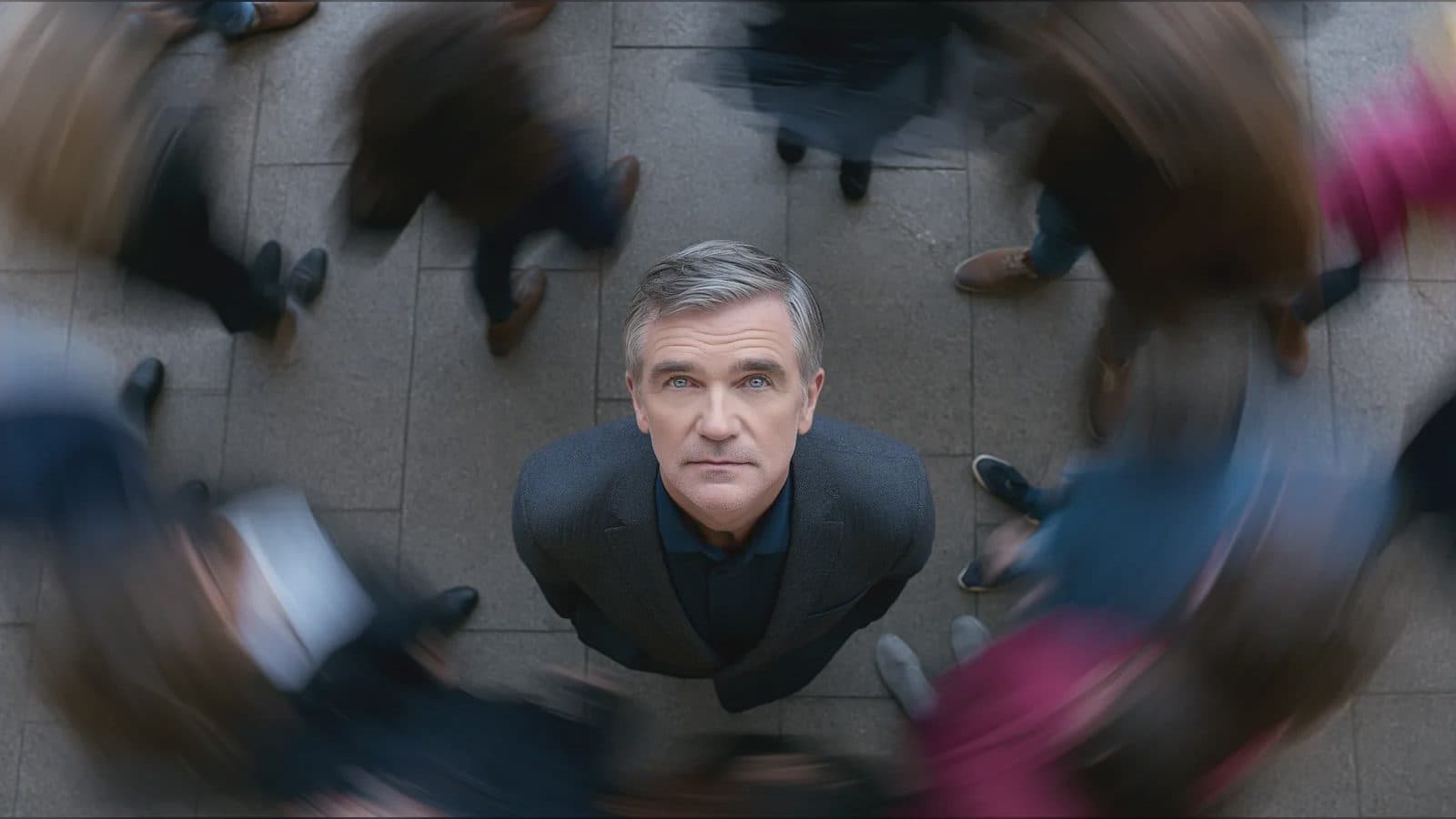
MiniMax H3 camera reference: transfer shot movement with control
A MiniMax H3 camera reference lets a creator show the movement they want instead of describing every acceleration, turn, and stop in words. A reference clip can communicate a push-in, orbit, handheld follow, crane move, or rapid transition. The prompt still needs to explain which part of the clip is the camera pattern and which details should not be copied.
This distinction matters because a video contains camera motion, subject motion, setting, light, editing, and sound at once. Without clear roles, the request can become contradictory.
Supplied H3 demonstration: camera behavior is transferred while the scene content changes.
Isolate the camera grammar
Choose a 2-to-15-second reference with a readable path. Note the starting frame, direction of travel, distance change, lens-like feeling, and ending composition. If the source includes cuts, say whether those cuts are part of the desired structure or whether only one movement should transfer.
MiniMax H3 permits up to three reference videos, with no more than 15 seconds of video reference time across the request. A single clear example is often easier to direct than three clips with competing motion.
Assign the other references
Use still images for the new character, product, costume, or environment. In the prompt, label the video as camera motion and the images as appearance references. Then protect the essentials: product geometry, character identity, logo orientation, or the final framing.
A useful instruction describes the transformation: begin on a medium shot of the new subject, follow the reference's clockwise orbit and gentle rise, and finish on the supplied product close-up. It does not ask the model to imitate everything visible in the reference clip.
Evaluate the whole path
Watch once at normal speed and once frame by frame. Check whether the subject changes scale naturally, the horizon behaves consistently, foreground objects reveal depth, and the camera arrives at the intended endpoint. Look for collisions, sudden speed changes, or a background that slides independently of the subject.
Also review subject action. A camera move may be accurate while a person turns the wrong way or a product leaves the usable frame. Sound deserves a separate pass because a transferred visual rhythm may need different footsteps, ambience, or effects.
Frequently asked questions
What video formats can I use for camera reference?
The manual lists H.264/AVC and H.265/HEVC video, with AAC or MP3 audio.
How long can the camera reference be?
Each video can be 2 to 15 seconds, and all video references together can total at most 15 seconds.
Does a camera reference replace the written prompt?
No. The prompt should identify the motion to transfer, the new content, and the details that must remain unchanged.
Bring a readable camera clip and clearly assigned appearance references into ArtArch, then review the generated path from its opening composition through its final frame.
Keep exploring
More in Academy
MiniMax H3 Production Checklist for Commercial Video Teams
Review MiniMax H3 inputs, rights, prompt scope, identity, product accuracy, audio, format, retries, approvals, and delivery before production.

MiniMax H3 API Media Formats and URL Input Checklist
Prepare MiniMax H3 API media with supported codecs, image and audio formats, file limits, 64 MB request bodies, and URL-based inputs.
How to Plan 12 Reference Files for MiniMax H3
Assign clear identity, product, style, motion, camera, and audio roles across a MiniMax H3 mixed request without creating contradictory references.
Use MiniMax H3 for Storyboard and Visual Pitch Previews
Turn keyframes and a creative brief into a MiniMax H3 motion preview for shot order, transitions, timing, sound, and stakeholder review.