

ArtArch Newsroom
AcademyHow to Add a Person to Video With MiniMax H3
Write a MiniMax H3 edit brief that adds a person to an existing group while matching uniform, action, position, scale, and lighting.
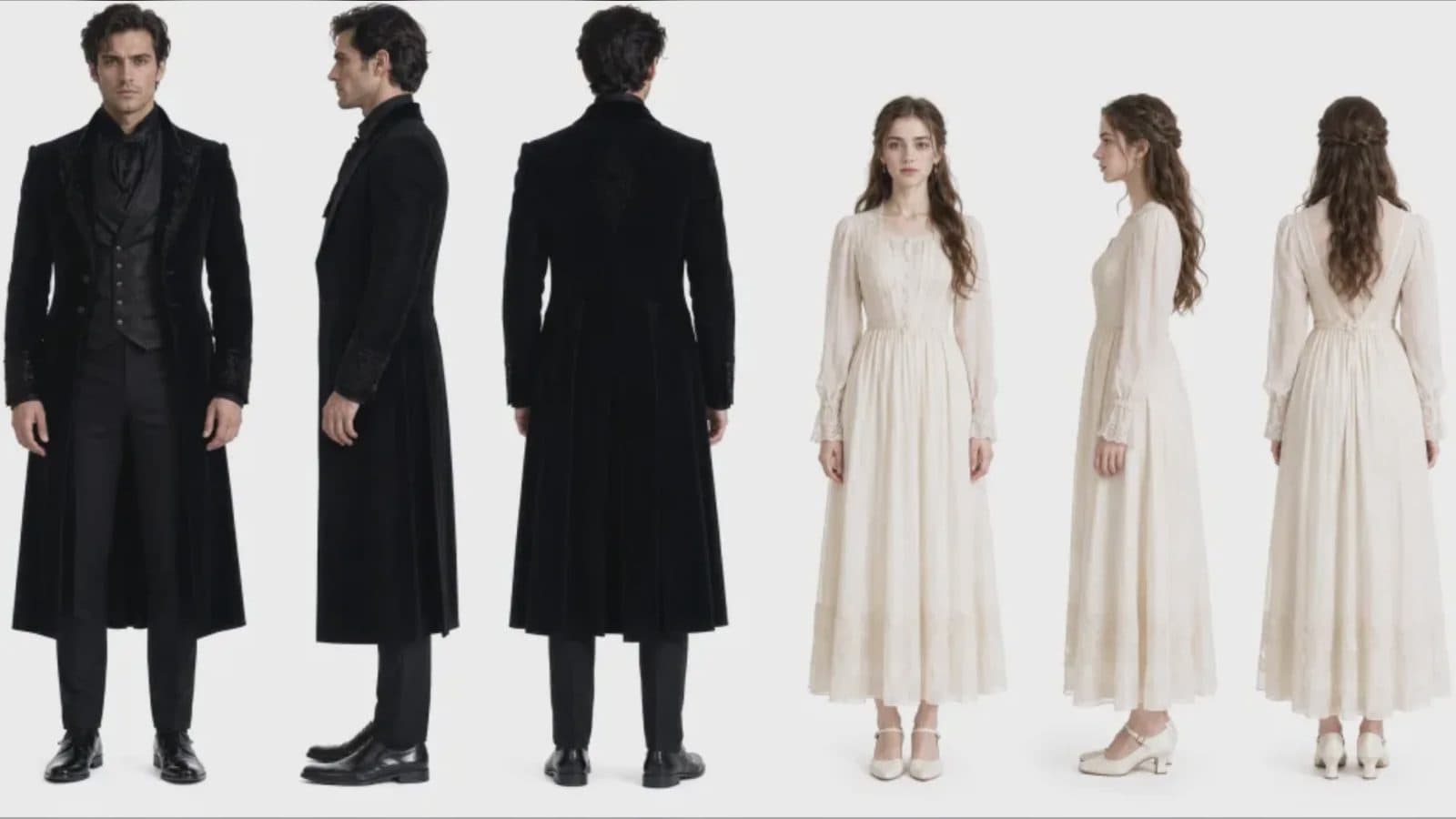
How to add a person to video with MiniMax H3
For teams researching how to "add person to video with MiniMax H3," the prompt must solve staging as well as appearance. The new subject needs a believable place in the group, an action on the same timeline, and contact with the scene's light, floor, objects, and other people. An identity reference alone does not define those relationships.
The supplied manual includes an example of adding a person to an existing group. That example is a useful workflow pattern, not a promise that every crowded scene will resolve without iteration.
Supplied H3 demonstration: one additional uniformed person is staged inside the original group action.
Find a usable space in the shot
Watch the source clip and mark where the person enters, stands, or moves. Note whether another subject crosses that area and whether the camera changes angle or distance. Choose a position that remains readable throughout the relevant seconds.
Describe the new person's scale relative to someone already present. In a uniformed group, identify the matching garment while preserving the new person's face and body. In a casual scene, define enough wardrobe detail to establish them without introducing a competing style direction.
Give the added person one clear action
Start with a simple behavior: walk into place, turn toward the speaker, lift an object, or react at a specific beat. State the eye line and hand use. Complex choreography increases the number of contact and occlusion points that need review.
Use images to define identity and clothing. The existing video supplies camera, location, and group timing. In the prompt, explicitly protect the original participants, their dialogue, and the background if those should not change.
Check whether the person belongs in the scene
Review foot placement, scale, depth, shadows, color temperature, and motion blur. Look for correct occlusion when someone passes in front. Confirm that the group leaves physical room and reacts appropriately if the new action requires it.
Listen for unexplained audio. An added walking subject may need footsteps, while a silent observer should not gain dialogue. Native stereo sound is part of H3 output and can reveal inconsistencies that are easy to miss visually.
Frequently asked questions
Do I need a full-body reference?
Use one when body proportions, uniform, or full-shot identity matters. A portrait alone may not define those details.
Can I add someone to a 9:16 group video?
H3 supports 9:16 output, but narrow framing leaves less staging space. Plan position and overlap carefully.
Should the source group's behavior remain unchanged?
State that explicitly when required. If the added person interacts with them, describe only the necessary reactions.
Upload the source shot and focused identity references in ArtArch, place the new person on the timeline, and review scale, contact, occlusion, light, and sound.
Keep exploring
More in Academy

MiniMax H3 Production Checklist for Commercial Video Teams
Review MiniMax H3 inputs, rights, prompt scope, identity, product accuracy, audio, format, retries, approvals, and delivery before production.

MiniMax H3 API Media Formats and URL Input Checklist
Prepare MiniMax H3 API media with supported codecs, image and audio formats, file limits, 64 MB request bodies, and URL-based inputs.
How to Plan 12 Reference Files for MiniMax H3
Assign clear identity, product, style, motion, camera, and audio roles across a MiniMax H3 mixed request without creating contradictory references.
Use MiniMax H3 for Storyboard and Visual Pitch Previews
Turn keyframes and a creative brief into a MiniMax H3 motion preview for shot order, transitions, timing, sound, and stakeholder review.