

ArtArch Newsroom
AcademyHow to Use MiniMax H3 for Your First AI Video
Follow a practical MiniMax H3 workflow for choosing a mode, preparing references, writing a prompt, selecting an aspect ratio, and reviewing the result.
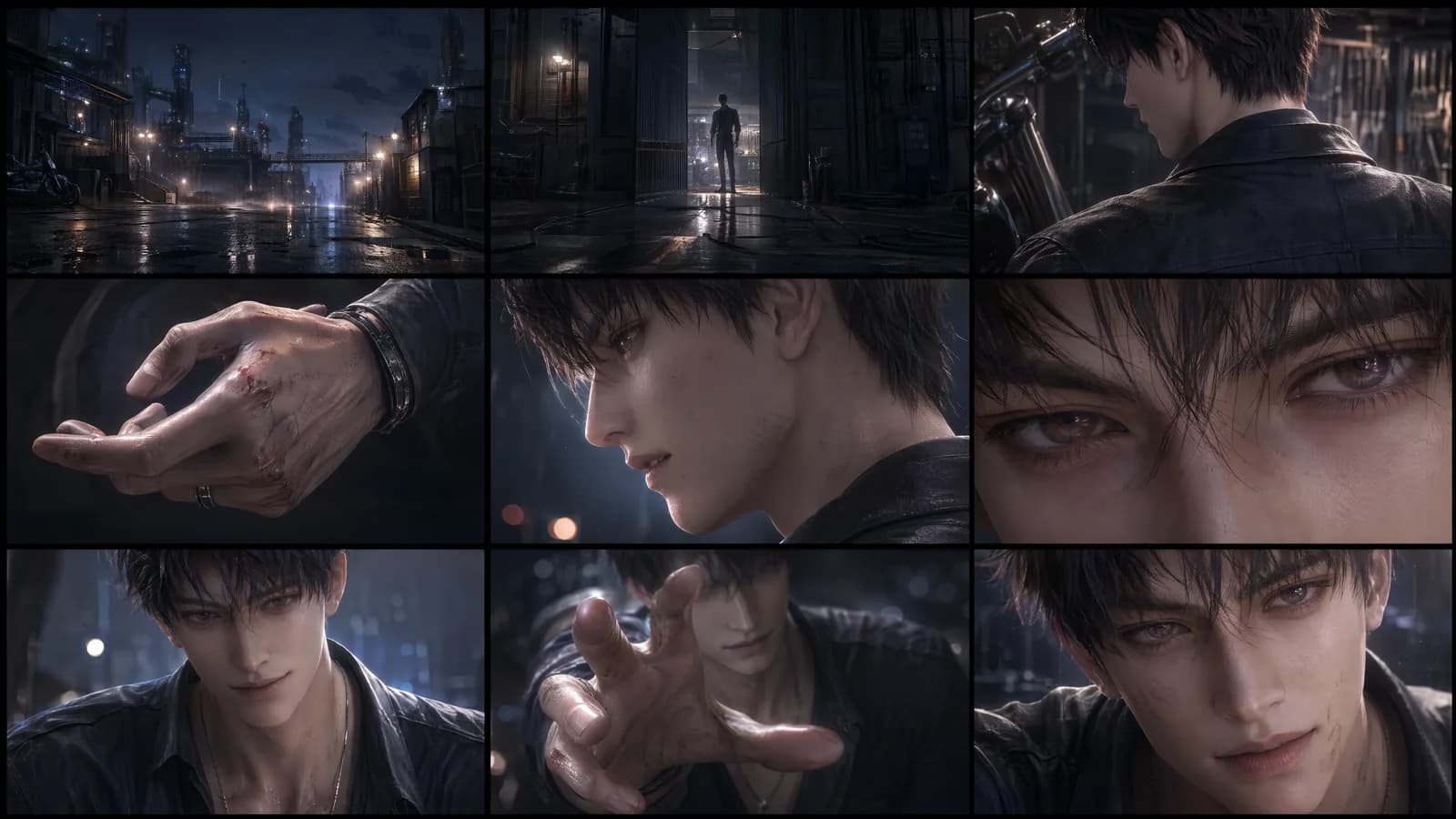
How to use MiniMax H3 for your first AI video
The simplest way to use MiniMax H3 is to design one shot, not an entire film. Choose a single visible outcome, prepare only the references that support it, and write a prompt that another person can review. This keeps the first generation diagnostic. If the result fails, you can identify whether the problem came from identity, action, camera, sound, or an overloaded brief.
Supplied H3 demonstration: a 15-second horizontal text-to-video result.
Step 1: choose the right H3 mode
Use text to video when the shot does not depend on a specific person, product, location, or opening frame. This path begins in first and last frame mode with no image attached.
Add one image when the opening composition matters. Add two when both the start and finish need visual anchors. A first-and-last-frame request is useful for a reveal, a transformation, a UI transition, or any shot where the destination is as important as the opening.
Choose Omni Reference when several media sources have different jobs. The manual allows up to nine images, three videos, and three audio clips, with 12 mixed files at most.
Step 2: give every reference one role
Write the role next to the asset before uploading it. A portrait controls facial identity. A full-body sheet controls proportions and clothing. A product image controls shape and surface details. A video controls action timing or camera movement. An audio clip controls a spoken line or voice tone.
Do not use two references that disagree about the same detail unless the prompt explicitly describes a change. If one character sheet has short hair and another has long hair, the model has no reliable identity target.
Step 3: write the shot in visible order
Begin with the output format and duration. Then name the subject, setting, action order, camera, sound, and ending. A compact structure looks like this:
- Create a 10-second 16:9 video.
- Use image 1 for the character's identity and image 2 for wardrobe.
- The character crosses the room, stops at the desk, and opens the box.
- The camera makes a slow lateral track and holds on the open box.
- Use quiet room tone, footsteps, and one soft mechanical click.
- Keep the face, jacket, box shape, and desk layout unchanged.
The prompt limit is 7,000 characters, but clarity matters more than filling it.
Step 4: select duration and aspect ratio
H3 supports 5 to 15 seconds. Pick the shortest duration that contains the full action. Extra seconds can invite unnecessary movement.
Keep exploring
More in Academy
MiniMax H3 Production Checklist for Commercial Video Teams
Review MiniMax H3 inputs, rights, prompt scope, identity, product accuracy, audio, format, retries, approvals, and delivery before production.
MiniMax H3 API Media Formats and URL Input Checklist
Prepare MiniMax H3 API media with supported codecs, image and audio formats, file limits, 64 MB request bodies, and URL-based inputs.
How to Plan 12 Reference Files for MiniMax H3
Assign clear identity, product, style, motion, camera, and audio roles across a MiniMax H3 mixed request without creating contradictory references.
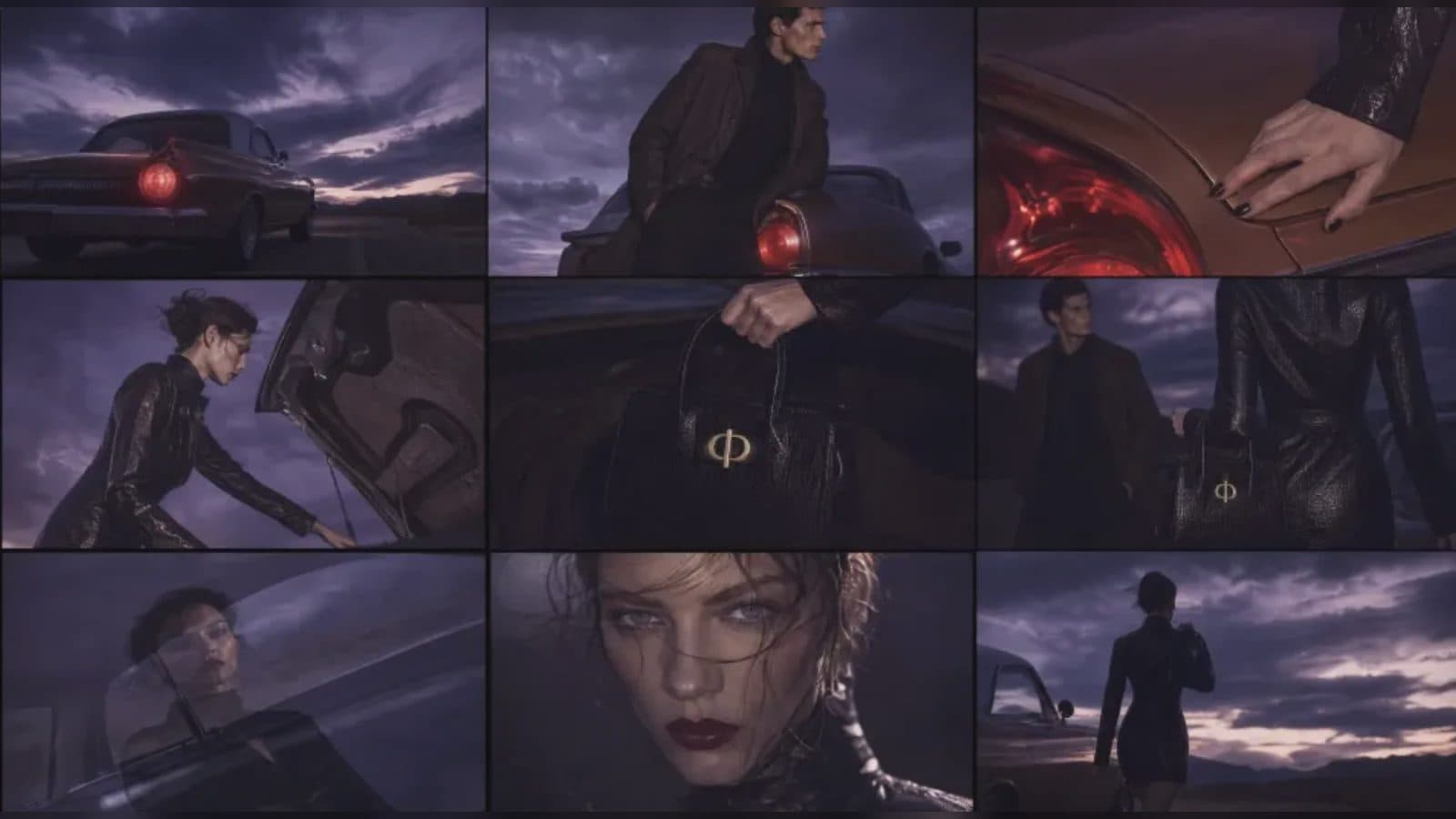
Use MiniMax H3 for Storyboard and Visual Pitch Previews
Turn keyframes and a creative brief into a MiniMax H3 motion preview for shot order, transitions, timing, sound, and stakeholder review.