

ArtArch Newsroom
AI Video TechniquesAI Image Generation CLI: Use an Agent to Build ArtArch Workflows
Use an AI image generation CLI with ArtArch to inspect a canvas, configure image nodes, run a task, and download the result through your agent.
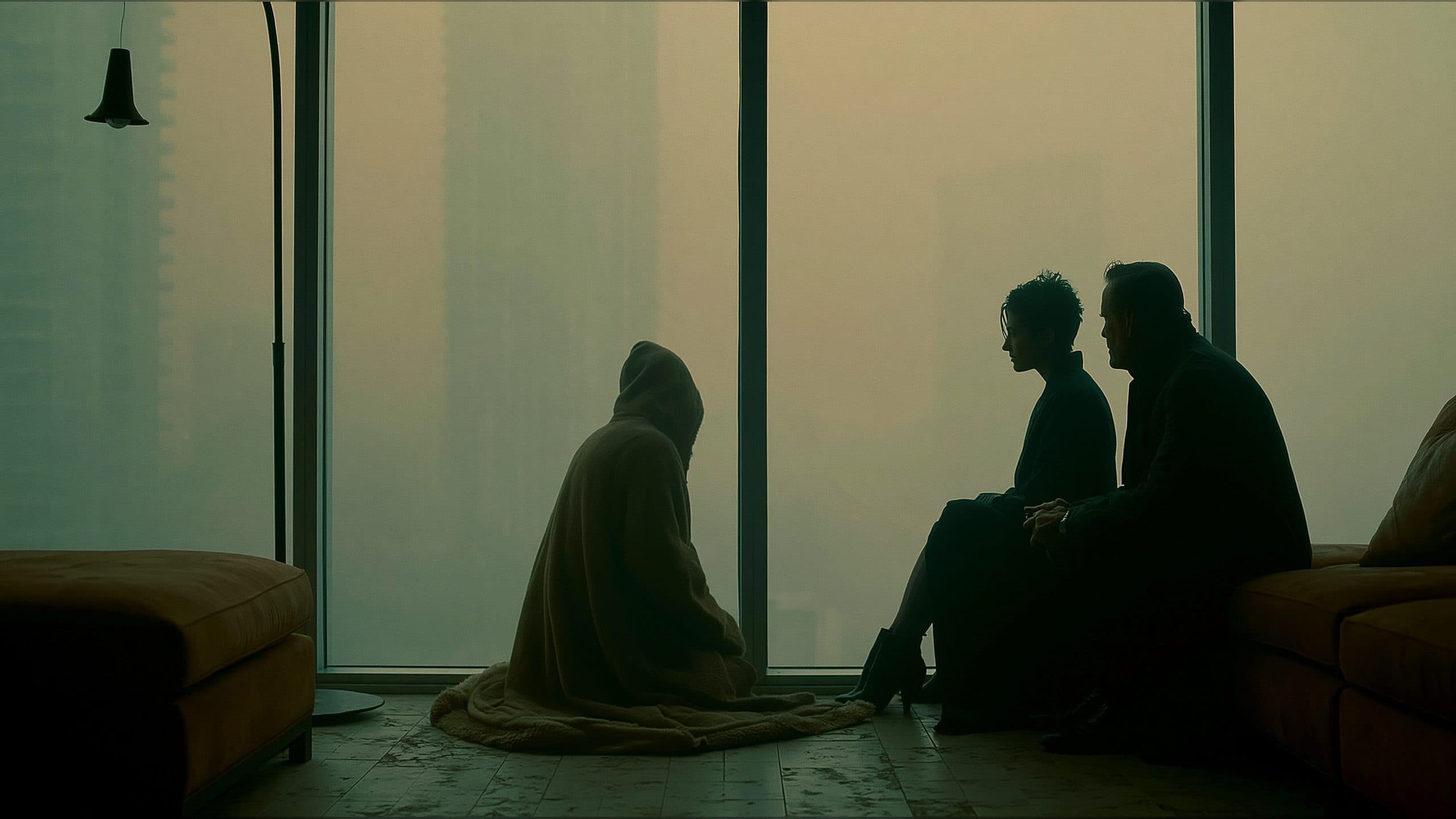
An AI image generation CLI is most useful when it keeps the creative brief connected to a reusable project. With ArtArch CLI, an agent can inspect an ArtArch Studio canvas, find the available image node types and settings, configure an image task, and leave the result available as a downloadable run artifact.
Begin with the image you want to see
Tell the agent what the image should contain before discussing command details. Name the subject, the setting, the composition, and the output shape. A request such as “create a square product image with the object centered on a clean background” gives the agent decisions it can map to a canvas.
ArtArch CLI keeps the agent close to that canvas. The agent can inspect node metadata with:
artarch meta list | jq
That metadata is the place to confirm available node types, models, and configuration fields for the current account and release. It is better input for an agent than a guessed command or a copied setting from an unrelated workflow.
Build the image task in a project
Use the project commands to find the canvas and read its current structure:
artarch project list | jq
artarch project get <canvas-id>
artarch node list
An agent can then add or update the image node using the type and fields returned by artarch meta list. The CLI supports named settings for a prompt, aspect ratio, quality, and resolution, as well as repeatable --set key=value fields for other configuration. When the task starts from a reference image, an image input can be supplied through the image field and connected to the image node.
This gives the agent a clear division of responsibility. The request describes the visual target. The canvas holds the repeatable configuration. The metadata response supplies the valid controls for the current node type.
Run once the canvas is ready
Inspect the node list and connected inputs before starting a generation run. A single node run may include its upstream dependencies, so the scope should be clear before approval. The command pattern is:
artarch node run <node-id> --wait --download
The agent can wait for the terminal result and download the available image artifact. If a wait times out, keep the existing run ID and continue waiting with artarch run wait <run-id>. A timeout is a reason to continue observing the same run, not to submit the image again.
For an agent-driven image workflow, this recovery detail matters. It separates “the command is still waiting” from “the project needs a new generation request.” Your agent can report the run state, keep the project unchanged, and fetch the artifact when it is ready.
Three image tasks that fit the CLI
For a product team, the agent can prepare a square product image from a short brief, then keep the project ready for another variation.
For a designer, it can use a supplied image as the visual starting point and configure a new composition around the subject while preserving the project context.
For a content team, it can inspect the available image node settings, apply the requested aspect ratio, and download the completed artifact to a local results directory for review.
Each task begins with a different creative decision, but the working path stays visible: inspect the project, configure the image node, review the run scope, wait, and download.
Frequently asked questions
What does an AI image generation CLI add to an agent?
It gives the agent a command-line path to ArtArch Studio projects, nodes, runs, and downloadable artifacts. The agent can keep a visual request tied to a project instead of treating every image as an isolated prompt.
Can an image workflow start from a reference image?
Yes. The CLI supports an image input field and connections from an uploaded media node or a completed generation with a persisted result. The agent should inspect the node's available input fields first.
How do I choose an image model or node type?
Ask the agent to read artarch meta list and use the returned node types, models, and fields. That keeps the configuration aligned with the current ArtArch metadata.
Where does the generated image go?
A completed run exposes its artifacts, and node run --wait --download can save the available result locally. The run download command can also fetch artifacts from an existing run.
For a working image generation session, open the ArtArch CLI page, install the skill for your agent, and ask it to build the first image canvas.
Keep exploring
More in AI Video Techniques
How to Make an AI Motion Transfer Video from a Dance Reference
Learn how beginners can use a character image, dance reference, and tracked depth motion to make an AI motion transfer video with ArtArch.
Depth-Based Action Reenactment for Beginners
Learn how depth-based action reenactment turns a dance reference into a motion guide for a new character with ArtArch.
AI Dance Video Reenactment from a Reference Video for Beginners
Learn how to use a character image, dance reference video, and depth motion guide to create an AI dance reenactment with ArtArch.
Build an AI Video Workflow with an Agent and ArtArch CLI
Build an AI agent video workflow with ArtArch CLI: inspect a canvas, connect references, run a flow, wait on the same run, and download artifacts.