

ArtArch Newsroom
Creative AgentGPT Image 2 and UI Truth: Create Visuals Without Inventing the Interface
Use GPT Image 2 for creative scenes while keeping real interface labels, controls, and screenshots accurate and reviewable.
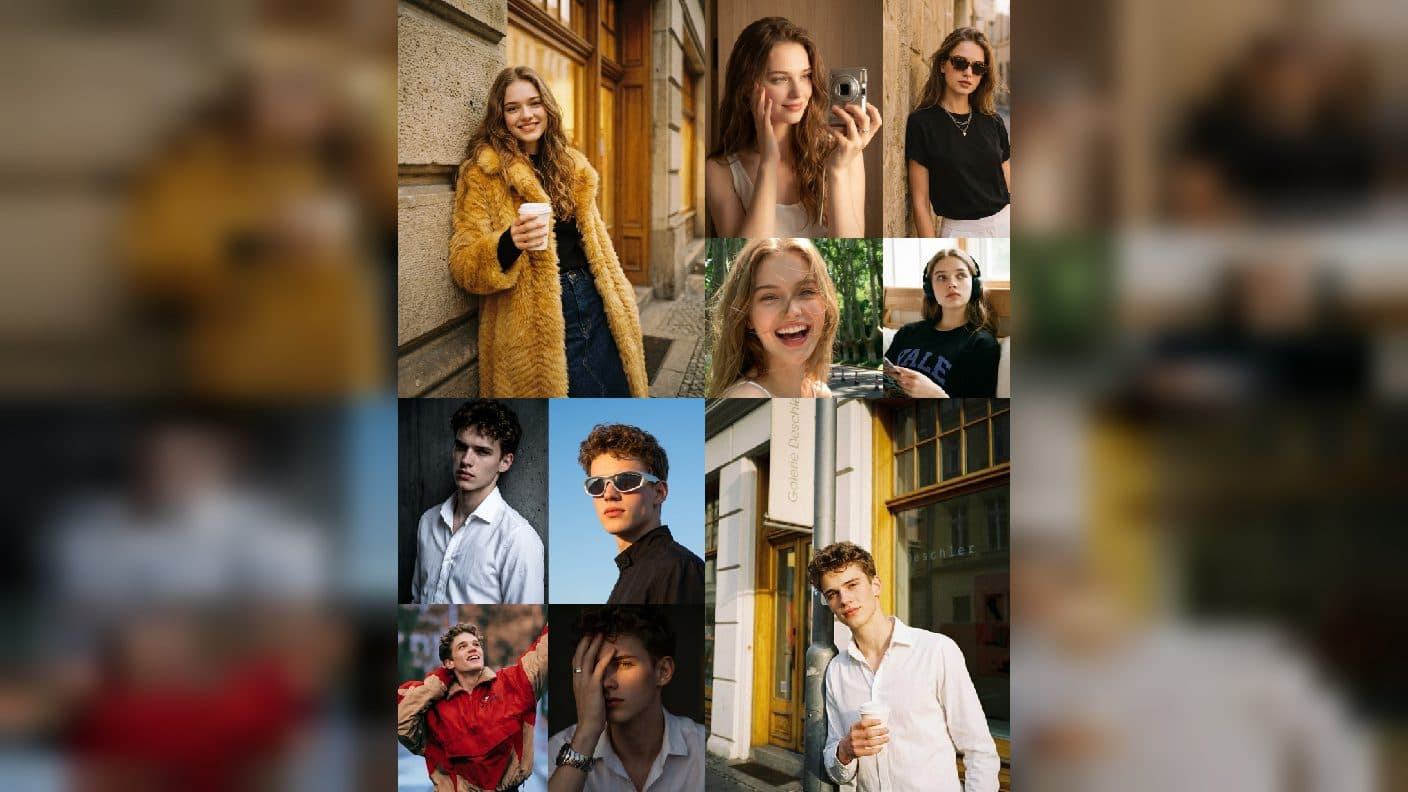
AI images are excellent for mood, subjects, and environments. They are less reliable when an image must show a real app interface, exact labels, or precise controls. Beginners can avoid confusion by separating visual storytelling from interface truth. Use GPT Image 2 for the surrounding creative scene and use a real screenshot or carefully composed layout for the parts people must read.
Decide what must be exact
Before generating, mark every element that carries factual meaning: a button label, a menu order, a product logo, a chart value, or a keyboard shortcut. Those pieces should come from a real source or a deliberate layout. GPT Image 2 can suggest a convincing dashboard, but convincing is different from accurate. Knowing the difference protects tutorials and product demonstrations.
Build a truthful visual brief
Describe the real interface separately from the atmosphere. For example, ask for a clean desk scene with a laptop angled toward the viewer, then reserve the screen area for a verified screenshot. Keep the screen perspective and lighting consistent with the surrounding image. An ArtArch canvas can store the source screenshot and the generated environment together, making the boundary easy to review.
Check text before sharing
Read every visible word at the final viewing size. Inspect numbers, icons, and small controls. If a label matters, replace the generated text with a real capture or a programmatic compositing step. Keep the generated image as a background plate rather than presenting invented UI as a real product state.
Connect the scene to a video
Once the visual truth is set, use Seedance for motion around it: a camera move over the desk, a hand reaching toward the verified screen, or a gentle light change. Keep the interface plane stable during the shot. Describe what moves and what remains fixed. This produces a more believable tutorial clip than asking a video model to redesign every control while the camera moves.
Beginner use cases
Create a course thumbnail with a real screenshot on a styled monitor, a launch announcement showing a product in a studio setting, or a support video that highlights one verified control. In all three, the image gives the scene personality while the factual interface comes from evidence you can inspect.
Frequently asked questions
Can GPT Image 2 generate a real app screen?
Use it for the surrounding scene and visual treatment. Use a verified screenshot or composed layout for labels and controls that viewers need to trust.
How can I keep a screenshot natural in the scene?
Match the screen angle, light direction, and crop, then check the final composite at normal viewing size.
What should move in a UI tutorial video?
Move the camera, hand, or surrounding light while keeping the verified interface readable and stable.
Why is this separation useful?
Keep exploring
More in Creative Agent
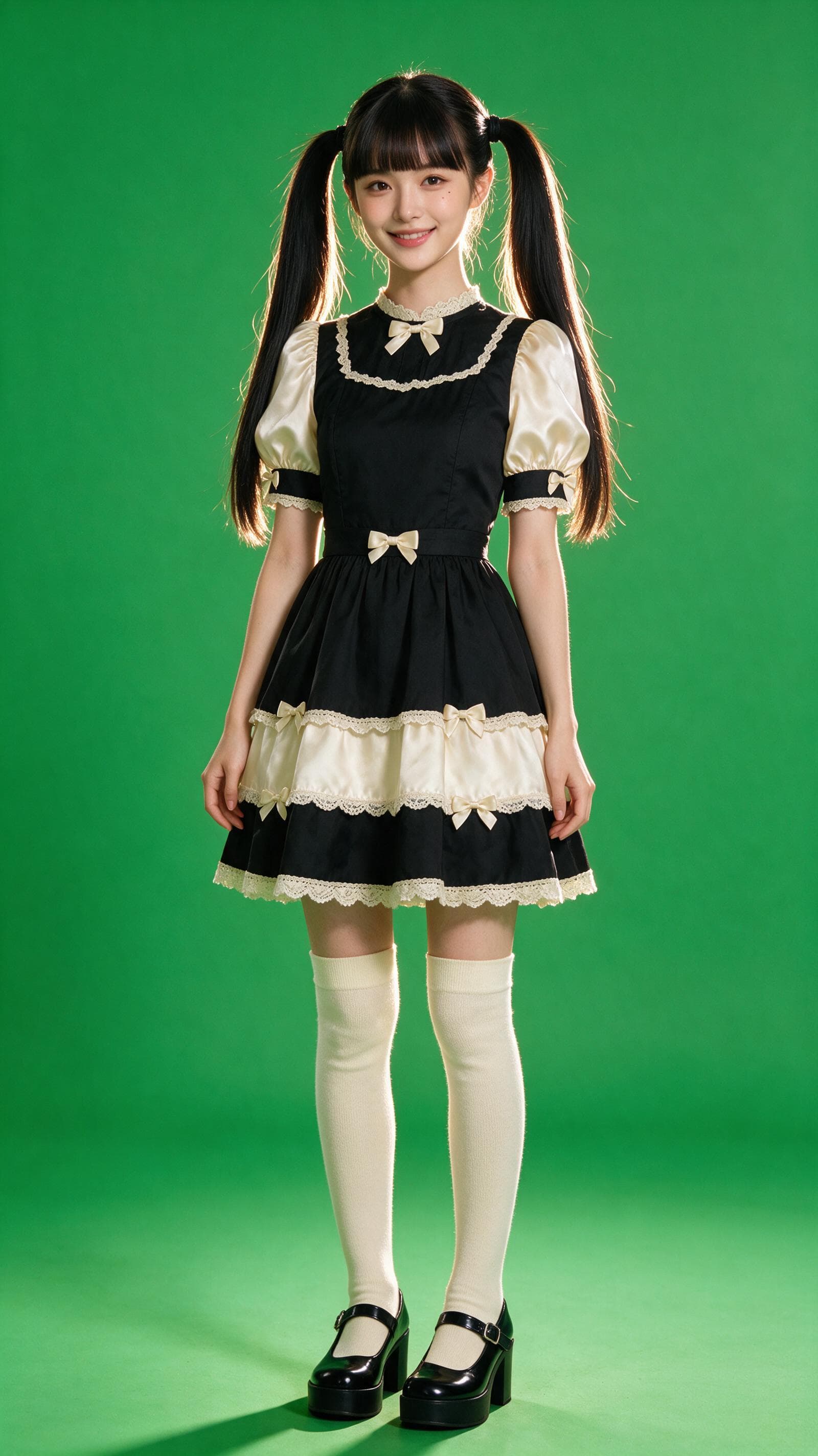
Designing a Three-Scene AI Character State Machine
three-scene AI character state machine case study with saved ArtArch Studio media, prompt decisions, visible results, and practical production notes.
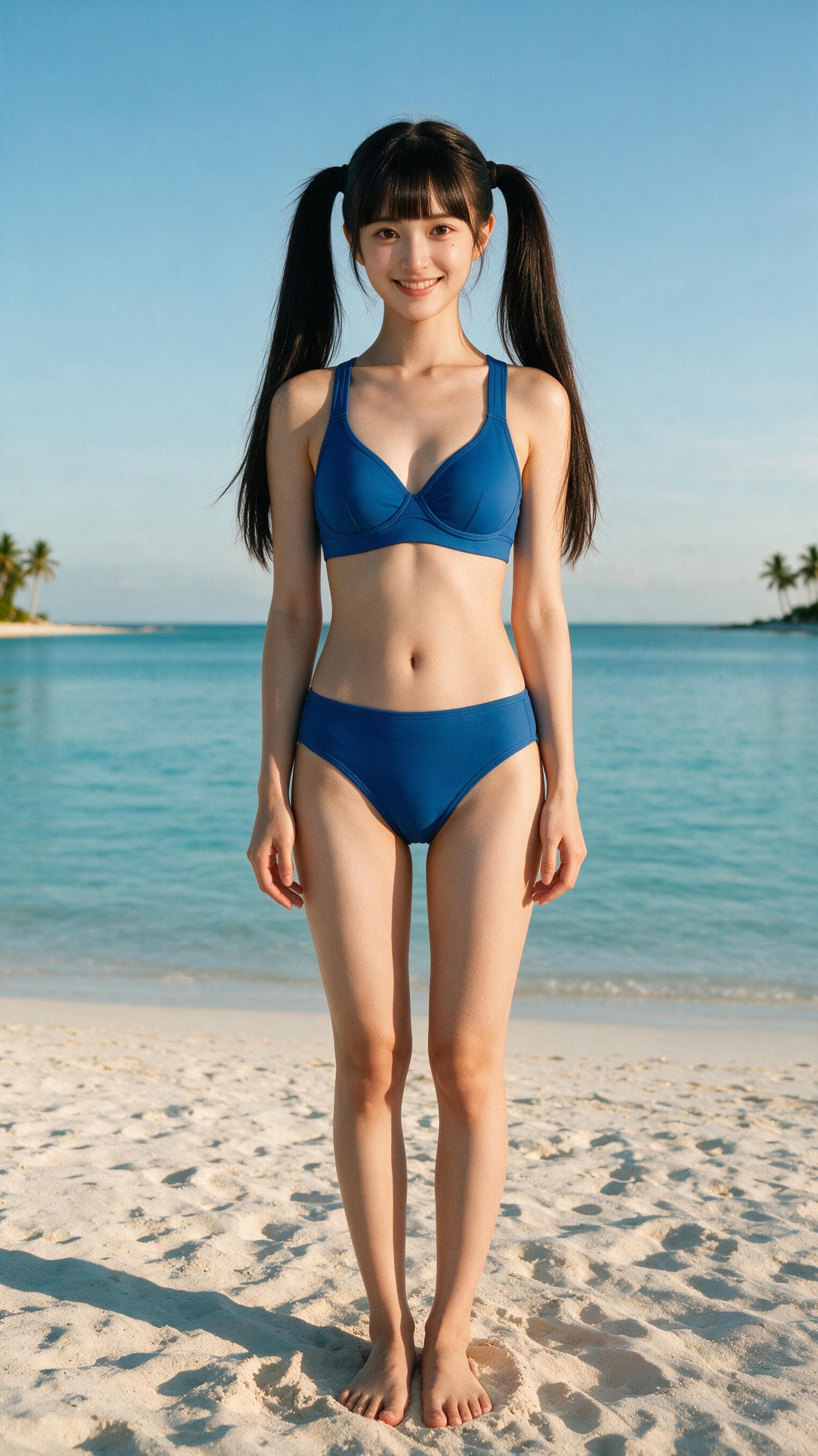
Extracting First and Last Frames to Plan AI Video Transitions
AI video transitions case study with saved ArtArch Studio media, prompt decisions, visible results, and practical production notes.
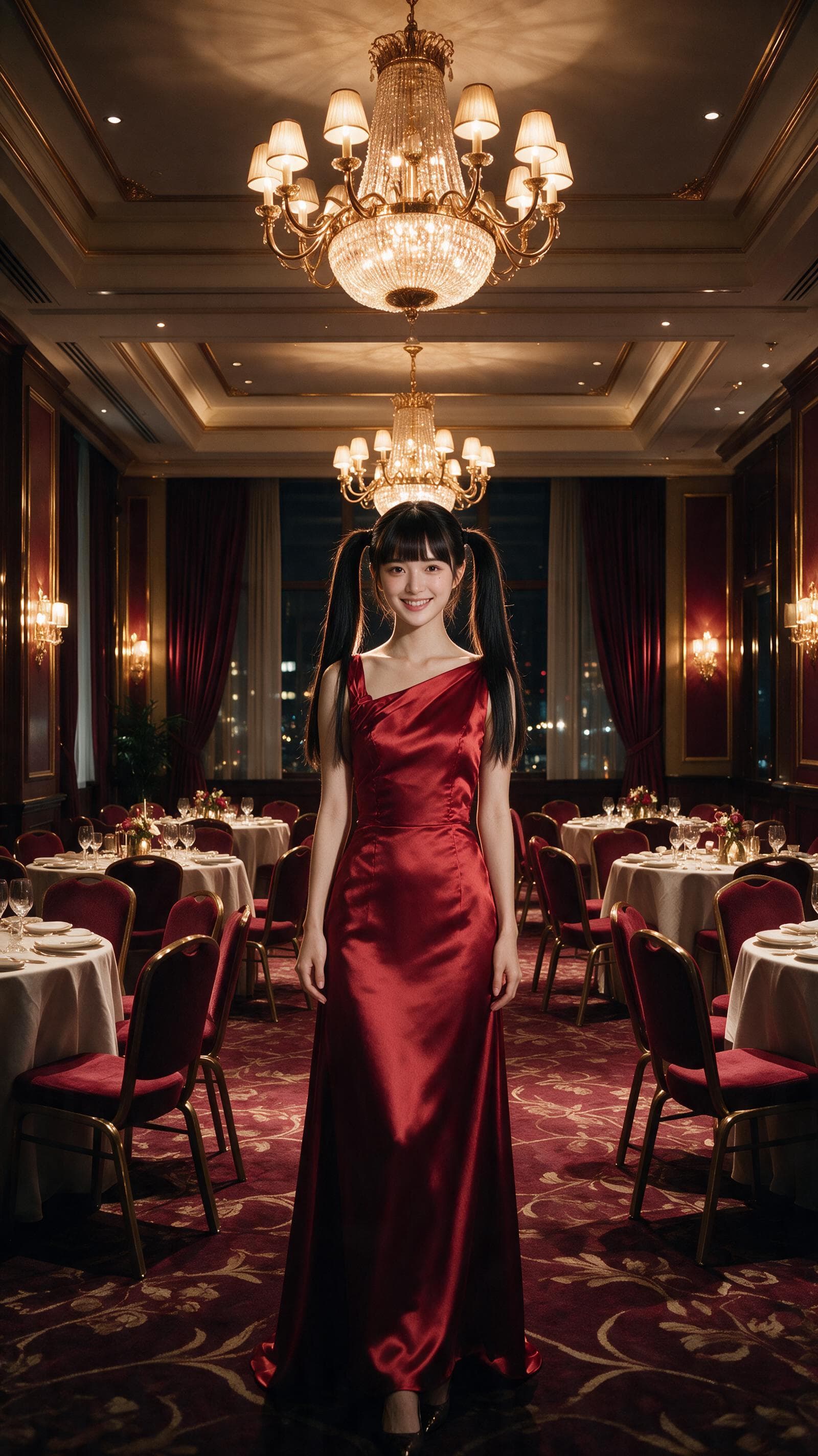
Fan-Dance-to-Idle AI Transition With a Clean Endpoint
fan-dance-to-idle AI transition case study with saved ArtArch Studio media, prompt decisions, visible results, and practical production notes.
An Idle-to-Fan-Dance AI Transition With the Prop as the Cue
idle-to-fan-dance AI transition case study with saved ArtArch Studio media, prompt decisions, visible results, and practical production notes.