

ArtArch Newsroom
Creative AgentGPT Image 2 Identity Preservation: Edit a Portrait Without Losing the Person
Edit a portrait with GPT Image 2 while protecting identity, pose, composition, and camera through narrow, reviewable changes.
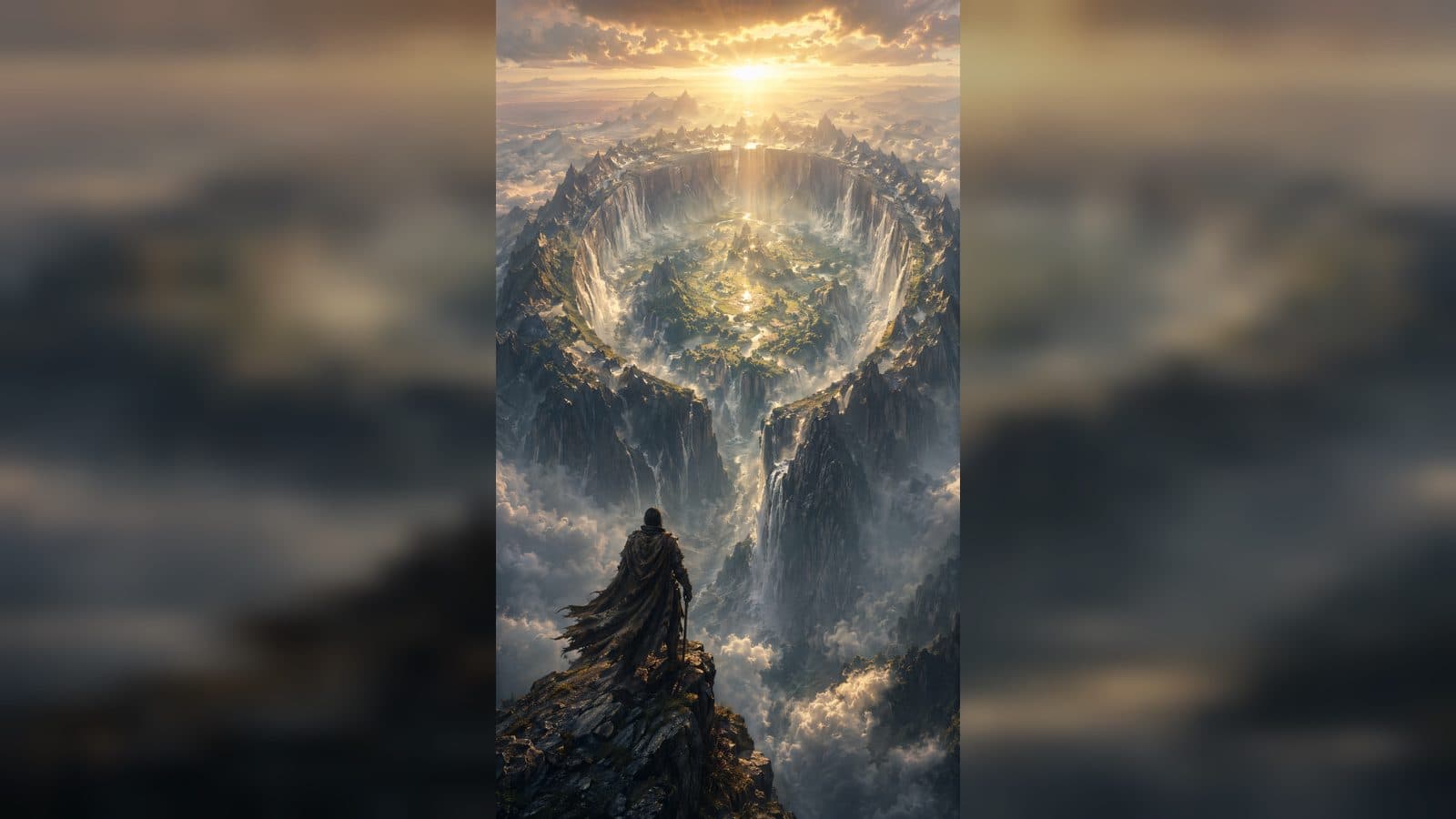
Editing a portrait with GPT Image 2 is most successful when the edit has a narrow purpose. Beginners may want a new outfit, a different background, or a gentle illustration style while keeping the person unmistakable. The workflow starts with a clear reference and a short preservation brief. An ArtArch canvas gives you a place to compare the original, the edit, and any later video version.
Define identity in ordinary language
List the features a friend would use to recognize the subject: face shape, hairstyle, skin tone, glasses, freckles, or a distinctive garment. Mention pose and camera angle as well. Do not turn the description into an identity score or a technical checklist. You are telling GPT Image 2 what must remain stable while one visible element changes.
Change one thing at a time
Start with a single edit such as "replace the background with a quiet library." Review that result before changing clothing or lighting. One-variable edits make it obvious which instruction caused a drift. If the face changes, shorten the style language and restate the preservation details. A restrained prompt is easier to debug than a dramatic all-in-one makeover.
Compare at the edges
Inspect eyes, hairline, jaw, hands, and clothing seams. These areas reveal unwanted redraws quickly. Zoom in on the clean original and the new version, then zoom back out to judge the whole composition. Save a review note on the canvas describing what stayed and what changed.
Keep reference hygiene in the loop
Use the original PNG as the canonical input. A compressed preview can help you browse versions, but it should not replace the master. If you run a cleanup pass, ask for background noise or grain to be removed while preserving identity, composition, pose, palette, style, and camera. Approve that cleaned image visually before using it for another edit or a Seedance shot.
Move from portrait to motion
When the still is approved, choose a motion that respects the pose: a slow turn toward the window, a small smile, or a gentle camera push. Describe the action and the camera in one sentence. Seedance can then use the portrait as a visual starting point for a short scene. Keep the person's defining details in the motion brief so the transition feels intentional.
Beginner scenes that work well
Create a professional profile portrait with a calmer background, a family photo with a seasonal setting, or a character card with a consistent illustrated treatment. The value comes from controlled editing: the same person appears in a new context, and viewers can understand the transformation immediately.
Frequently asked questions
How many identity details should I list?
Choose the few features that truly identify the person and include pose and camera angle. Too much decorative description can distract from those priorities.
Can I change clothing and background together?
Keep exploring
More in Creative Agent
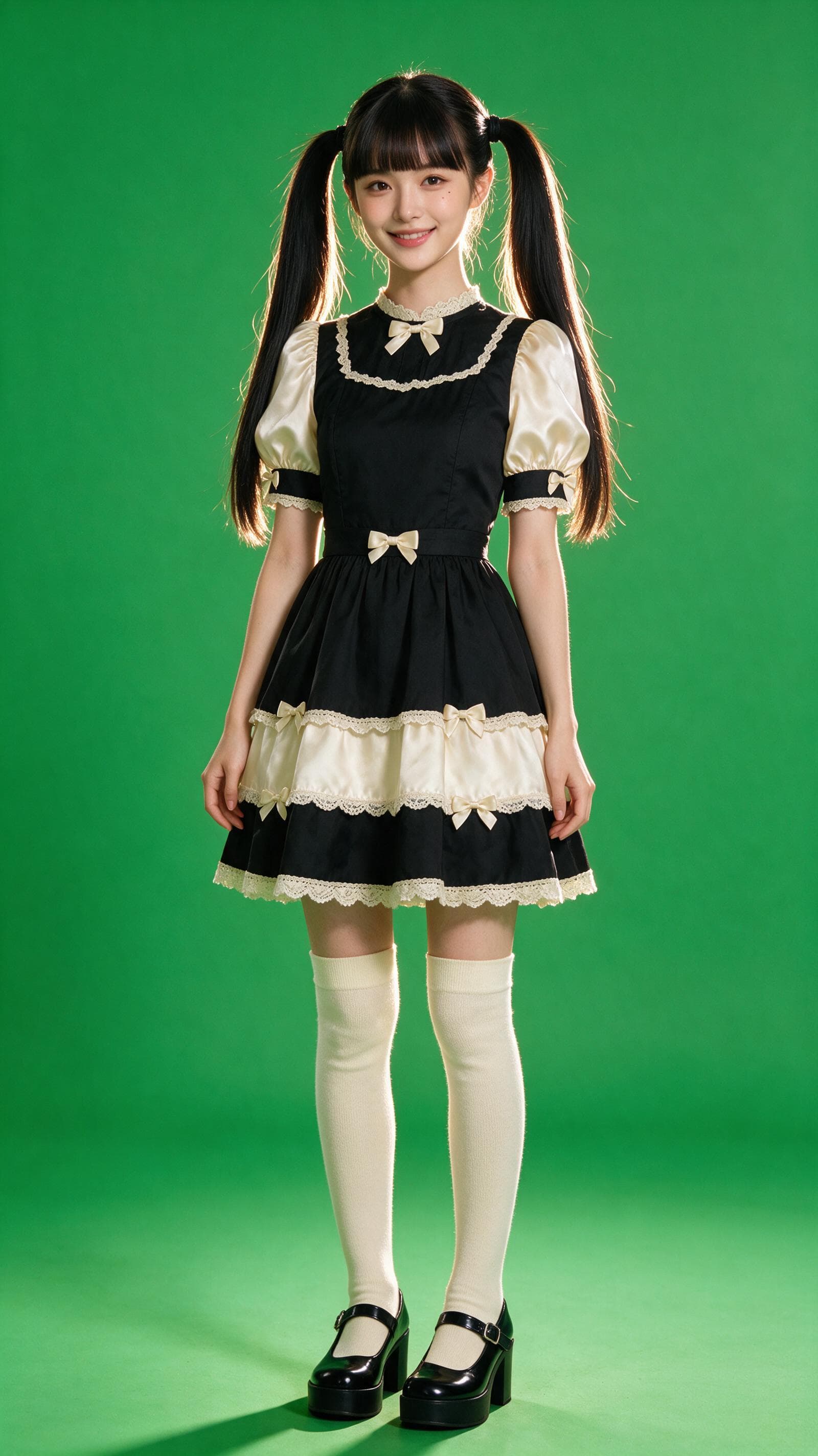
Designing a Three-Scene AI Character State Machine
three-scene AI character state machine case study with saved ArtArch Studio media, prompt decisions, visible results, and practical production notes.
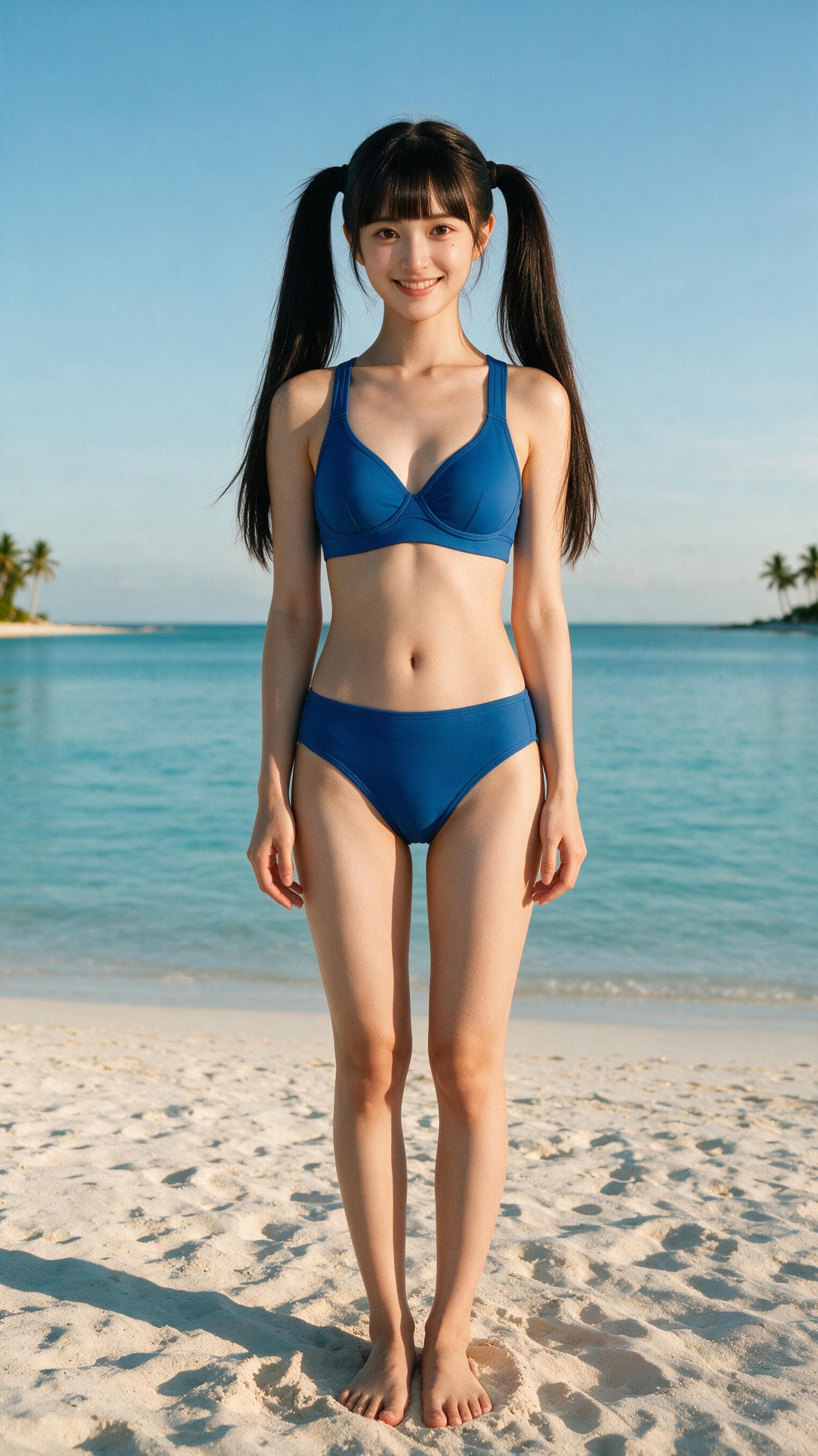
Extracting First and Last Frames to Plan AI Video Transitions
AI video transitions case study with saved ArtArch Studio media, prompt decisions, visible results, and practical production notes.
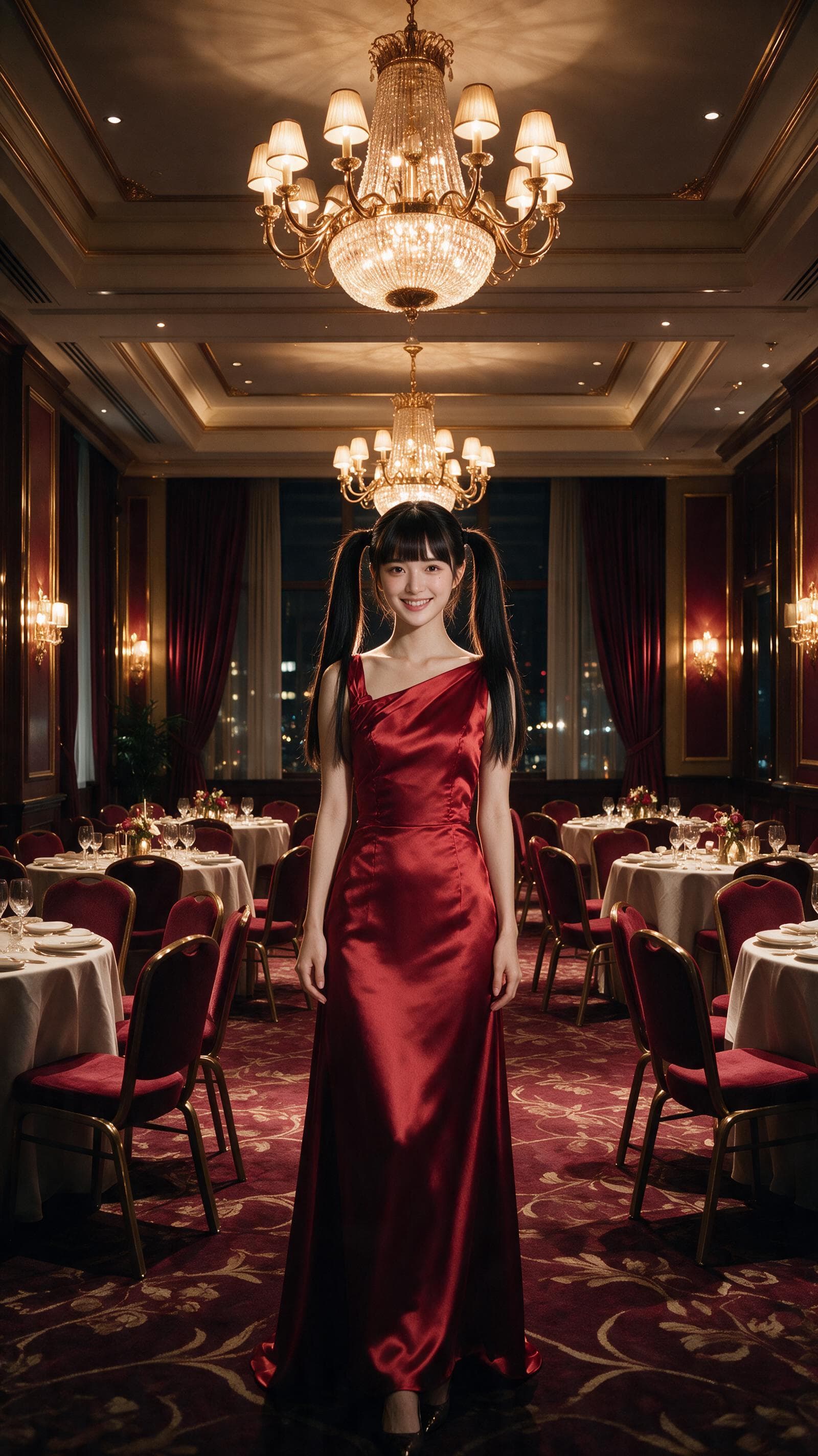
Fan-Dance-to-Idle AI Transition With a Clean Endpoint
fan-dance-to-idle AI transition case study with saved ArtArch Studio media, prompt decisions, visible results, and practical production notes.
An Idle-to-Fan-Dance AI Transition With the Prop as the Cue
idle-to-fan-dance AI transition case study with saved ArtArch Studio media, prompt decisions, visible results, and practical production notes.