

ArtArch Newsroom
Producer's NoteAdd Watermark to Image From Two Uploaded Images
Add watermark to image with a base photo and a watermark graphic. The template combines both uploads into one finished image with a prominent upper-right mark.

Add Watermark to Image
Upload a base image and a watermark image to create one finished image with the mark placed across the upper-right area. The template keeps the original picture as the main canvas, scales the watermark to a visible size, and applies it at full opacity so the final composition is ready to identify, sign, or label.
Start with two images
Use the first image as the picture you want to share. It might be a product shot, an illustration, or a campaign graphic. Use the second image for the mark you want to place on top, such as a logo, signature, or event badge. The two uploads define the entire visible transformation, so choose a watermark graphic with a clear shape and enough contrast for the base image.
See the finished placement
The watermark appears toward the top-right of the base image, with a generous margin from the edges and a width sized for quick recognition. The main picture remains the focus while the overlaid mark identifies its source. The result is a single image that combines both uploads in a consistent layout.
Three practical moments for a watermark
A product listing. A small studio can place its logo over a new product photo before sharing it with customers. The product remains the main subject, while the top-right mark keeps the image connected to the shop.
An artwork preview. An illustrator can upload a finished piece and a signature graphic to make a signed preview. The fixed placement gives viewers a clear signature area without asking them to edit the artwork manually.
An event announcement. An organizer can combine a poster or venue image with an event badge. The badge stays visible in the upper-right area, making the announcement easier to recognize when the image is reposted.
Create the watermarked image in three steps
- Select the base image you want to mark.
- Select the logo, signature, or badge image to use as the watermark.
- Open the Watermark-TR 1.1 template and review the combined image with the mark placed near the upper-right corner.
Frequently asked questions
What do I need to upload?
Provide two images: the picture that will receive the mark and the separate watermark graphic you want to overlay.
Where does the watermark appear?
The template places it in the upper-right portion of the base image, with a margin from the edges and a size that keeps the mark easy to see.
What can the second image contain?
A logo, signature, or event badge all work as clear watermark graphics for identifying the finished image.
What is the final output?
You receive one image that combines the original picture and the overlaid watermark in a consistent composition.
Keep exploring
More in Producer's Note
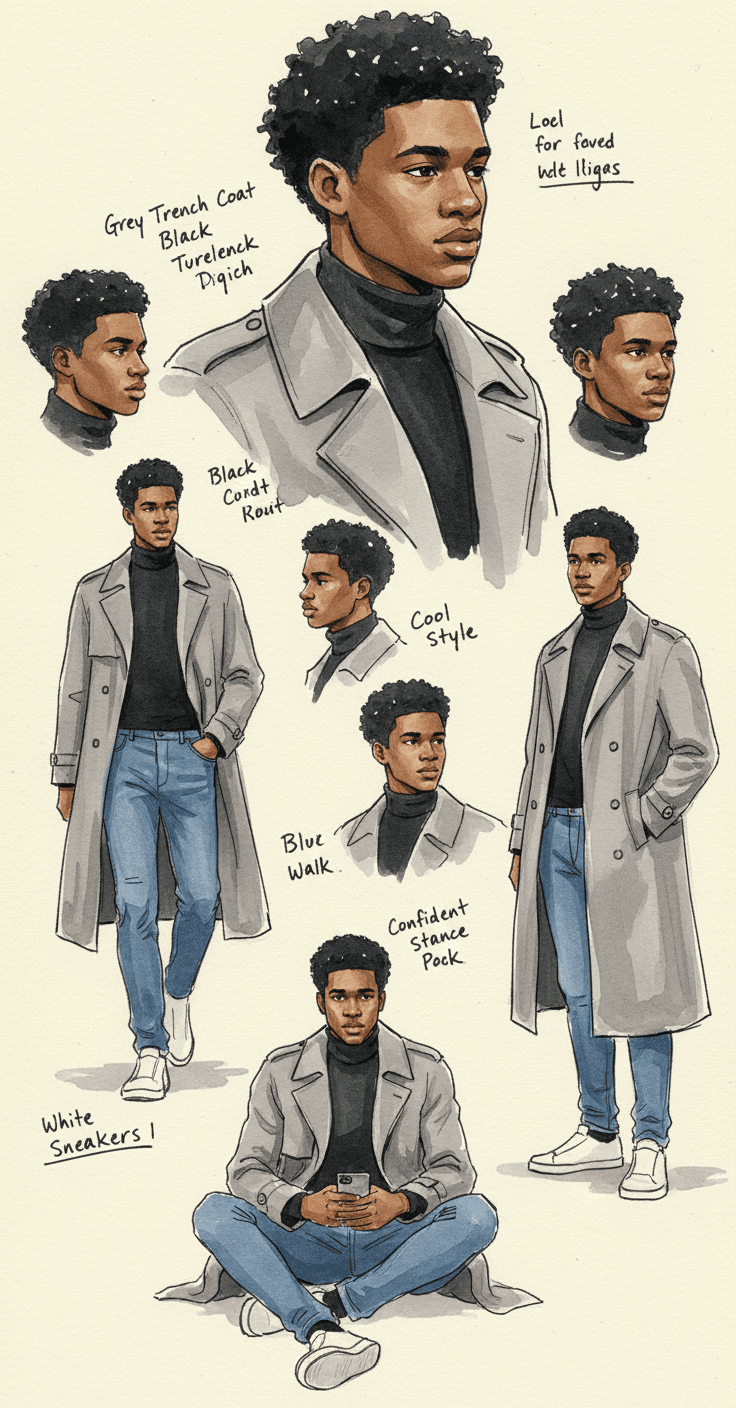
AI Watercolor Style Transformation Image From Image
Use an image to create an image centered on 🎨 Watercolor style transformation with this Skira template.

AI She Feigns Dancing Elegantly Video From Image
Use an image to create a video centered on She feigns dancing elegantly with this Skira template.

AI Authentic Talking-head Hair Clip Video From Image
Use an image to create a video centered on Authentic Talking-Head Hair Clip Sales Template with this Skira template.

AI Hot Dance Video From Image
Use an image to create a video centered on Hot Dance with this Skira template.